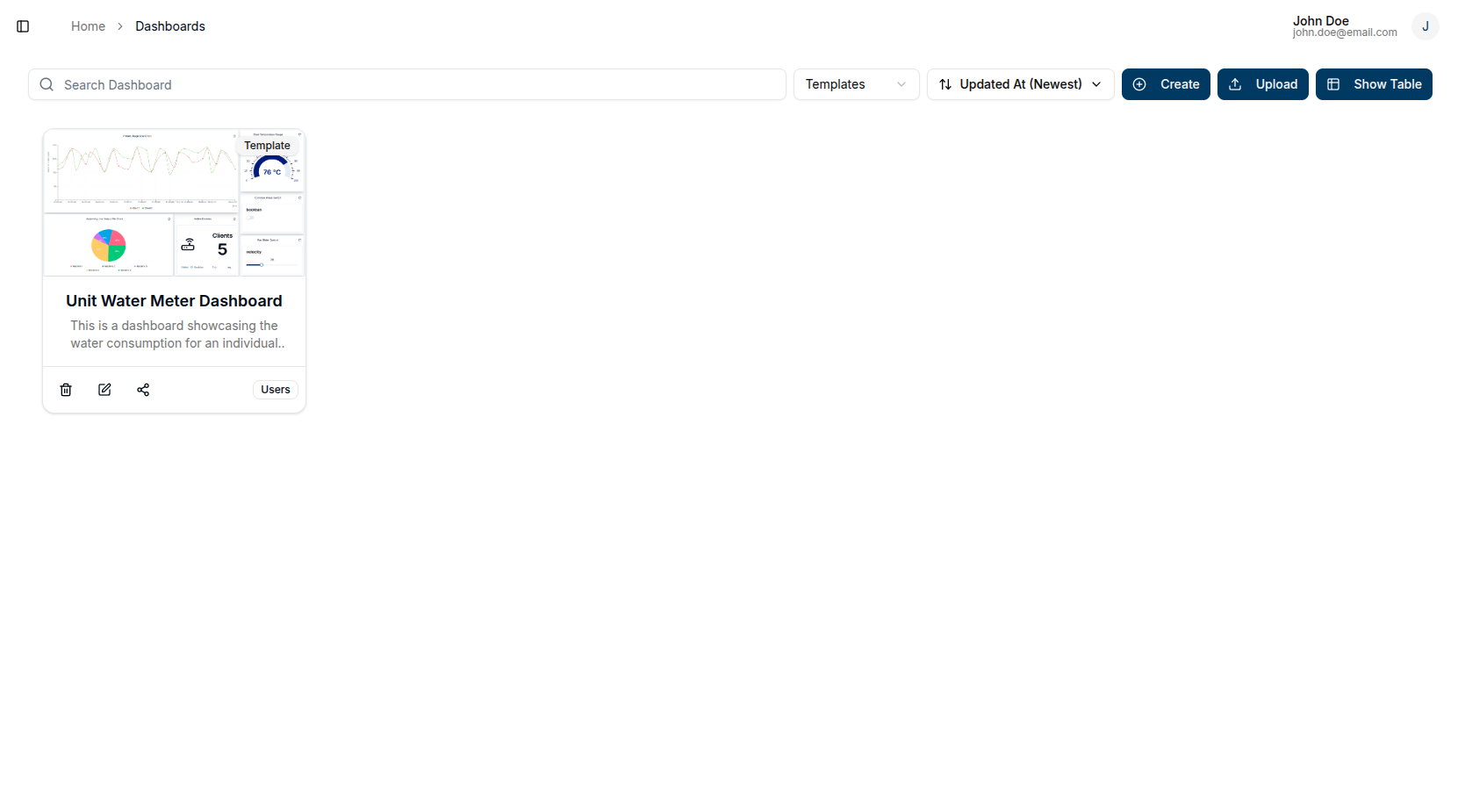
Templates Guide
Create reusable dashboards with tag-based data sources for multiple users
What are Templates?
Templates are dashboards with abstract data sources. Instead of binding each widget to a specific channel or client, you configure widgets using tags. When a domain member views a shared template, the system resolves each tag to the entity assigned to that user — so the same template layout serves multiple users, each seeing their own data.
This makes templates ideal for any scenario where many users need an identical dashboard layout but with data from their own assigned devices.
Use Cases
Customer Portals
Enterprise customers often need a self-service view of their own equipment and data. With templates, a domain admin creates a single dashboard layout once. Each customer is then assigned the entities (clients, channels) tagged appropriately, and when they log in they see a fully populated dashboard with their data — without any additional setup.
Magistrala provides custom customer portals for enterprise users built on top of this templates feature. Contact us to learn more.
Field Technician Dashboards
When you have a team of technicians, each responsible for different equipment, templates let each technician log in and immediately see readings, alerts, and controls for the devices assigned to them — using one shared template rather than maintaining a separate dashboard per technician.
Facility and Zone Monitoring
For deployments across multiple floors, buildings, or geographic zones, you can tag entities by location (e.g., floor-3, building-a). Assigning the relevant entities to each facility manager means they see only their zone's data when they open the shared template.
How Tag Resolution Works
When a domain member opens a shared template, the system resolves data sources for each widget as follows:
- The widget is configured with a tag (e.g.,
temperature-sensor). - The system looks up entities (clients, channels) assigned to the viewing user that carry that tag.
- The matching entity is used as the data source for that widget.
Important: Each user should have at most one entity of a given type with a particular tag. If multiple entities match, the system uses the first entity returned in the list. The domain admin is responsible for ensuring tags are applied correctly and unambiguously.
Prerequisites
Before sharing a template, the domain admin must ensure:
- The relevant entities (clients, channels) have the correct tags applied.
- Those entities are assigned to the appropriate users in the domain.
- Each user has only one entity per type with any given tag used in the template.
See the Members Guide for instructions on assigning entities to users.
Creating a Template
Only domain admins can create templates.
Navigate to the Dashboards tab and click + Create. In the create dialog, use the type switch at the top to select Template instead of Dashboard.
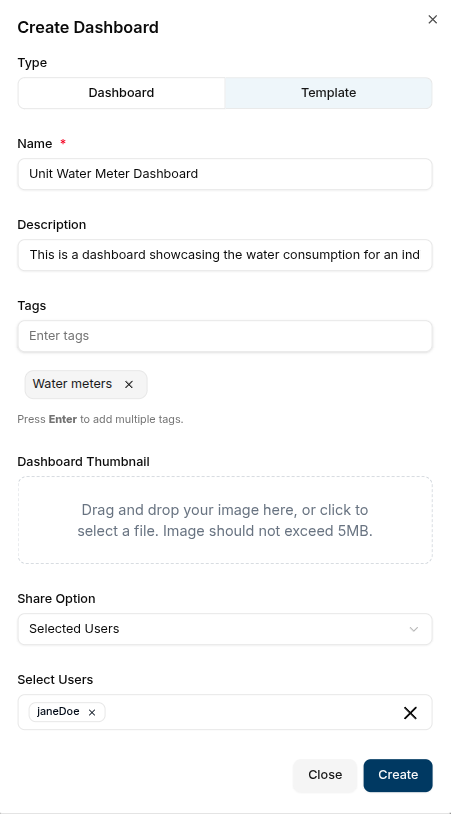
The following fields are available:
| Field | Required | Description |
|---|---|---|
| Name | Yes | A unique name for the template |
| Description | No | A short description of the template's purpose |
| Tags | No | One or more tags for categorizing the template |
| Thumbnail | No | An image to display on the template card |
| Share Option | No | Controls who can view this template (see Sharing a Template) |
Configuring Template Widgets
Adding widgets to a template works the same way as in a regular dashboard (see Widget Guide), with one key difference: data sources are specified by tag instead of by selecting a specific entity.
When adding or editing a widget in a template:
- Open the template and enable Edit Mode.
- Click
Add Widgetor click thepencilicon on an existing widget. - In the data source section, enter the tag of the entity whose data you want to display.
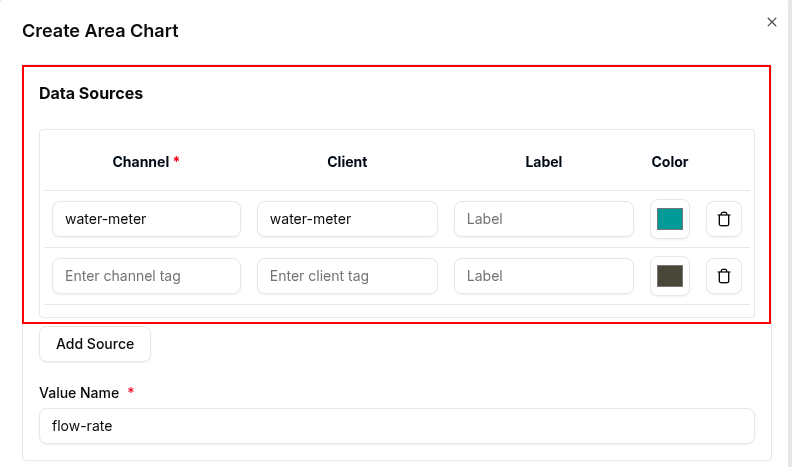
The tag you enter must match a tag on the entity assigned to each user who will view the template.
Sharing a Template
A template must be shared with domain members for them to see it when they view the domain. The same share options available for dashboards apply to templates:
- None — visible only to you (the admin who created it)
- Domain Members — all domain members can view the template with their own data
- Selected Users — only the users you choose can view the template
To update the share state, click the Share icon on the template card and select the desired option.
Managing Templates
Templates support the same management operations as dashboards:
Edit a Template
Click the pencil icon on the template card to open the edit panel. You can update the name, description, tags, and thumbnail.

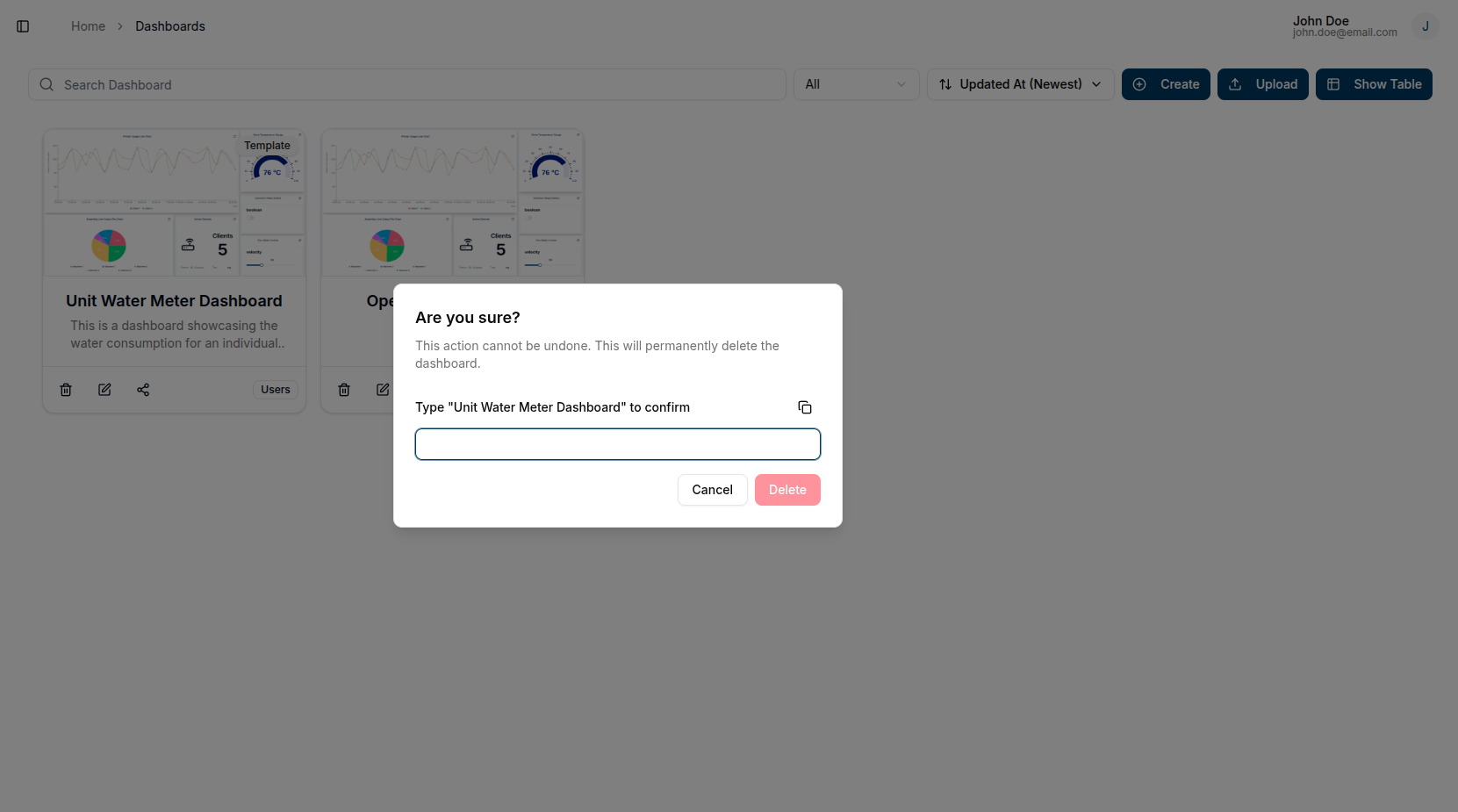
Delete a Template
Click the trash icon on the template card. A confirmation prompt will appear — type the template name exactly as shown to confirm deletion.
Unshare a Template
To revoke access, click the Share icon on the template card and change the share option to None (private) or adjust the Selected Users list.
Filtering Templates in the Listing
On the Dashboards listing page, use the Templates tab filter to view only templates. You can also search by name and apply sort options.
See the Dashboard Guide for full details on filtering and sorting.