
Metadata Management
Manage entity metadata with various value types and interactive maps
Overview
Metadata provides additional context and information for entities (clients, channels, groups, and domains) in Magistrala. The metadata system supports various value types including text, numbers, booleans, JSON objects, locations, and perimeters.
Managing Metadata
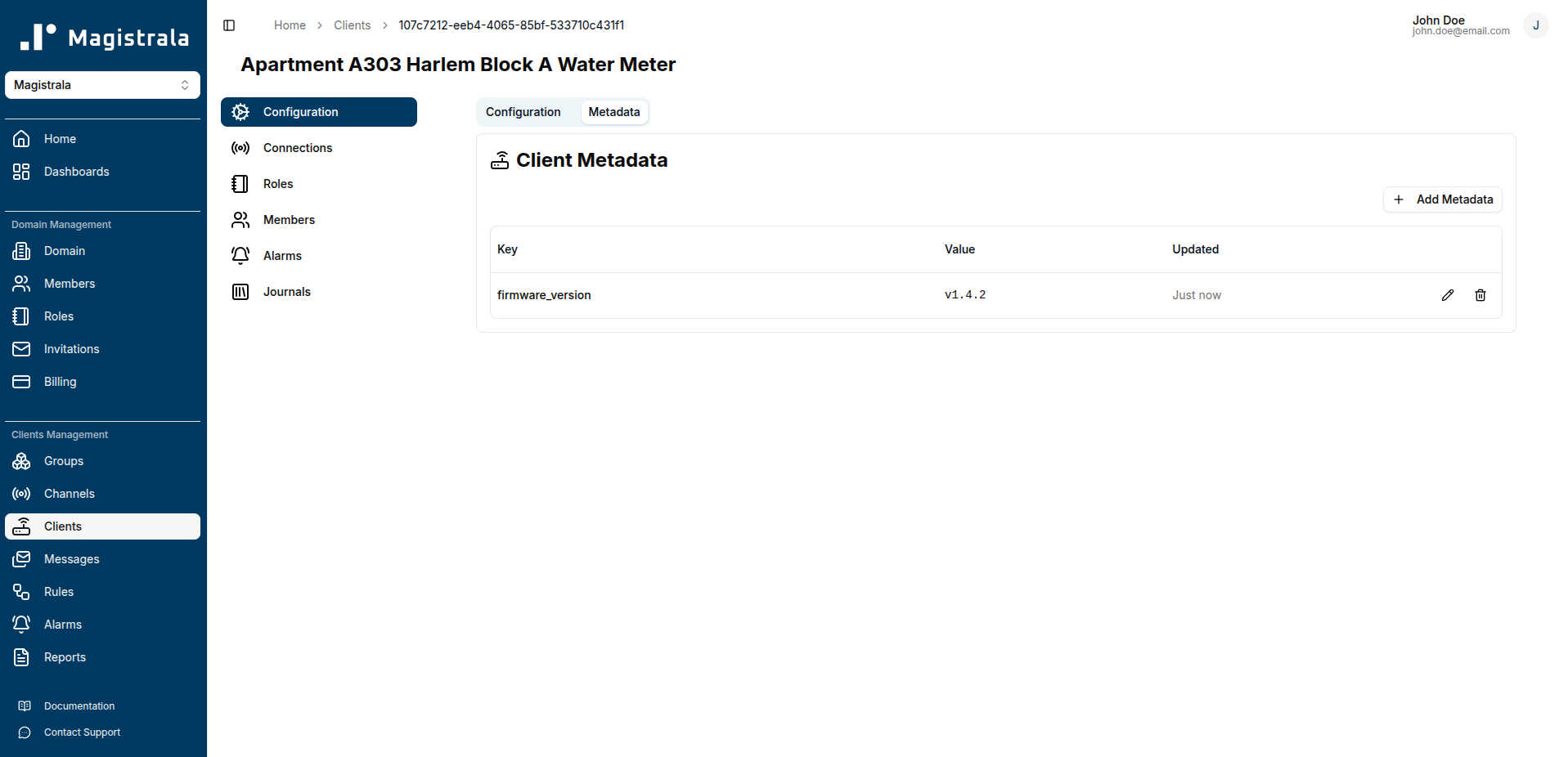
Accessing Metadata
- Navigate to any entity's view page
- Click the Metadata tab
- View existing metadata or add new entries
Adding Metadata
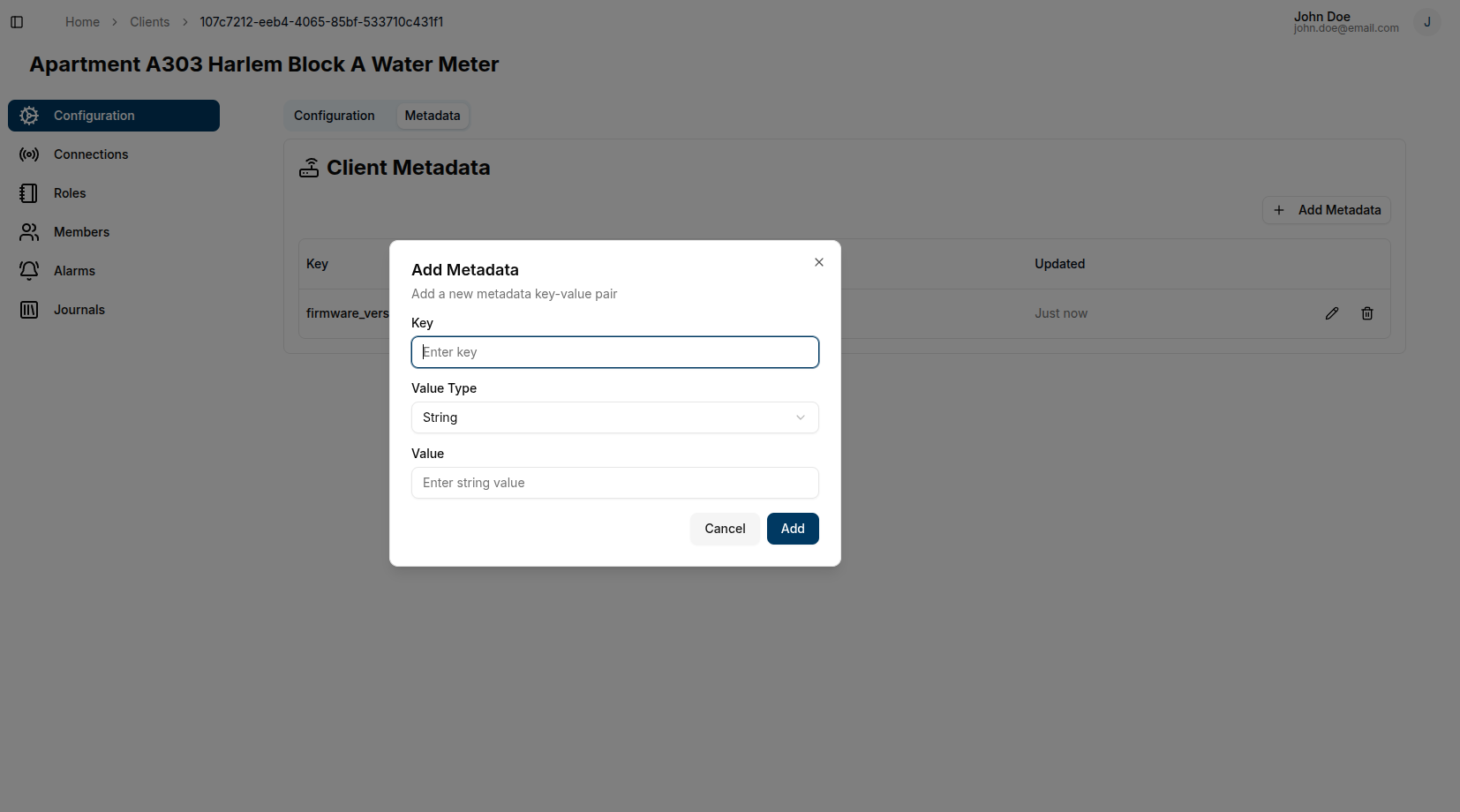
- Click + Add Metadata button
- Configure the metadata entry:
- Key: Unique identifier for the metadata field
- Value Type: Select the appropriate data type
- Value: Enter or configure the value based on the selected type
Value Types
Text and Number
Standard input fields for text strings and numeric values.
Boolean
Dropdown selector with True/False options.
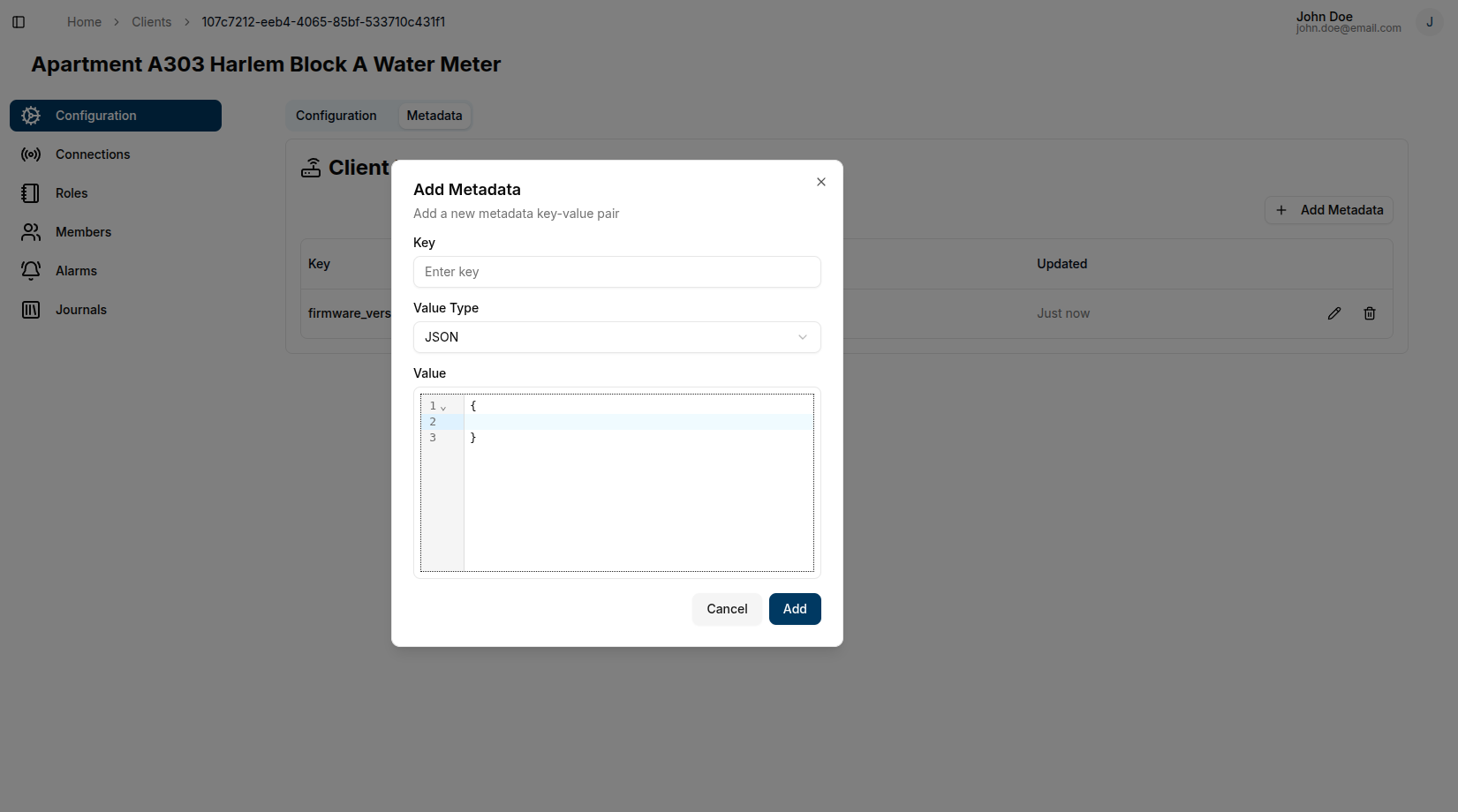
JSON
Code editor with syntax highlighting for JSON objects. Validates JSON structure automatically.
Location
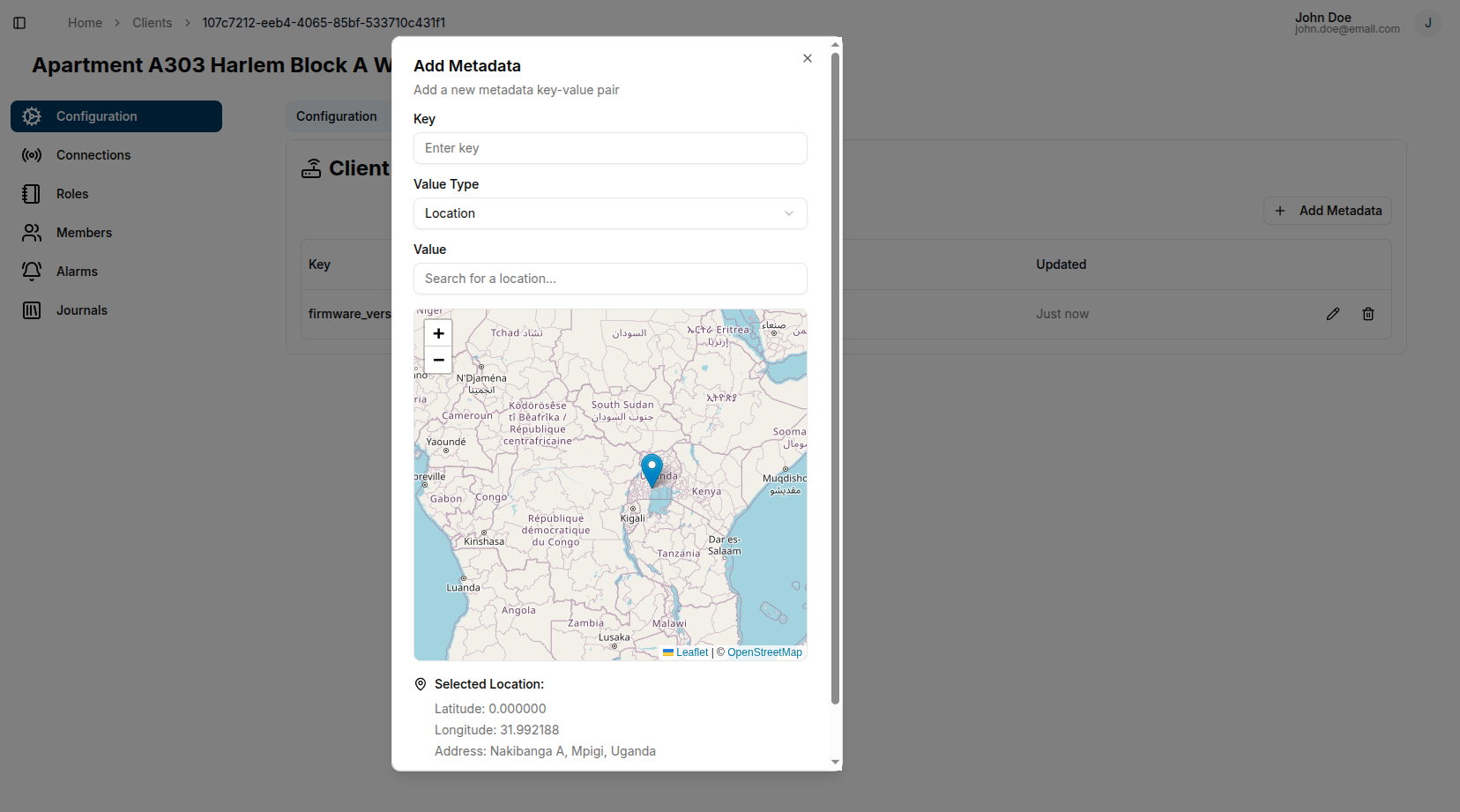
Interactive map interface for setting geographic coordinates.
Setting a Location
- Select Location as the value type
- Use one of these methods:
- Map Interaction: Click and drag the marker to the desired location
- Search: Type a location name in the search field and select from up to 5 recommendations
Perimeter
Interactive map for defining geographic boundaries using polygons, circles, or rectangles.
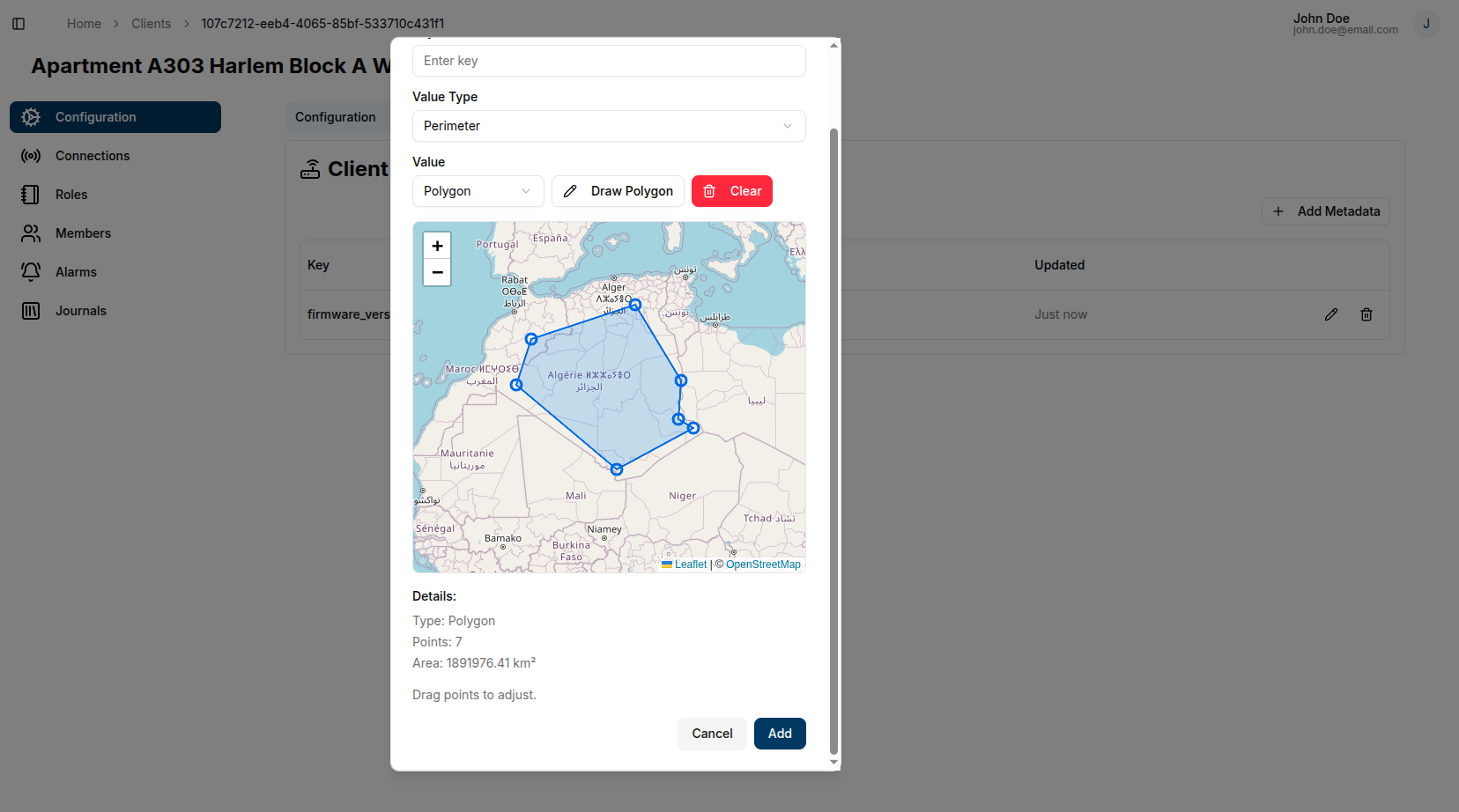
Polygon Perimeter
- Select Perimeter as the value type
- Choose Polygon from the perimeter options
- Click Draw to enable drawing mode
- Place points by clicking on the map
- Complete the polygon by:
- Clicking Complete button, or
- Clicking the first point (works best when zoomed in)
Editing Polygons:
- Drag points to adjust the shape
- Click Clear to delete and start over
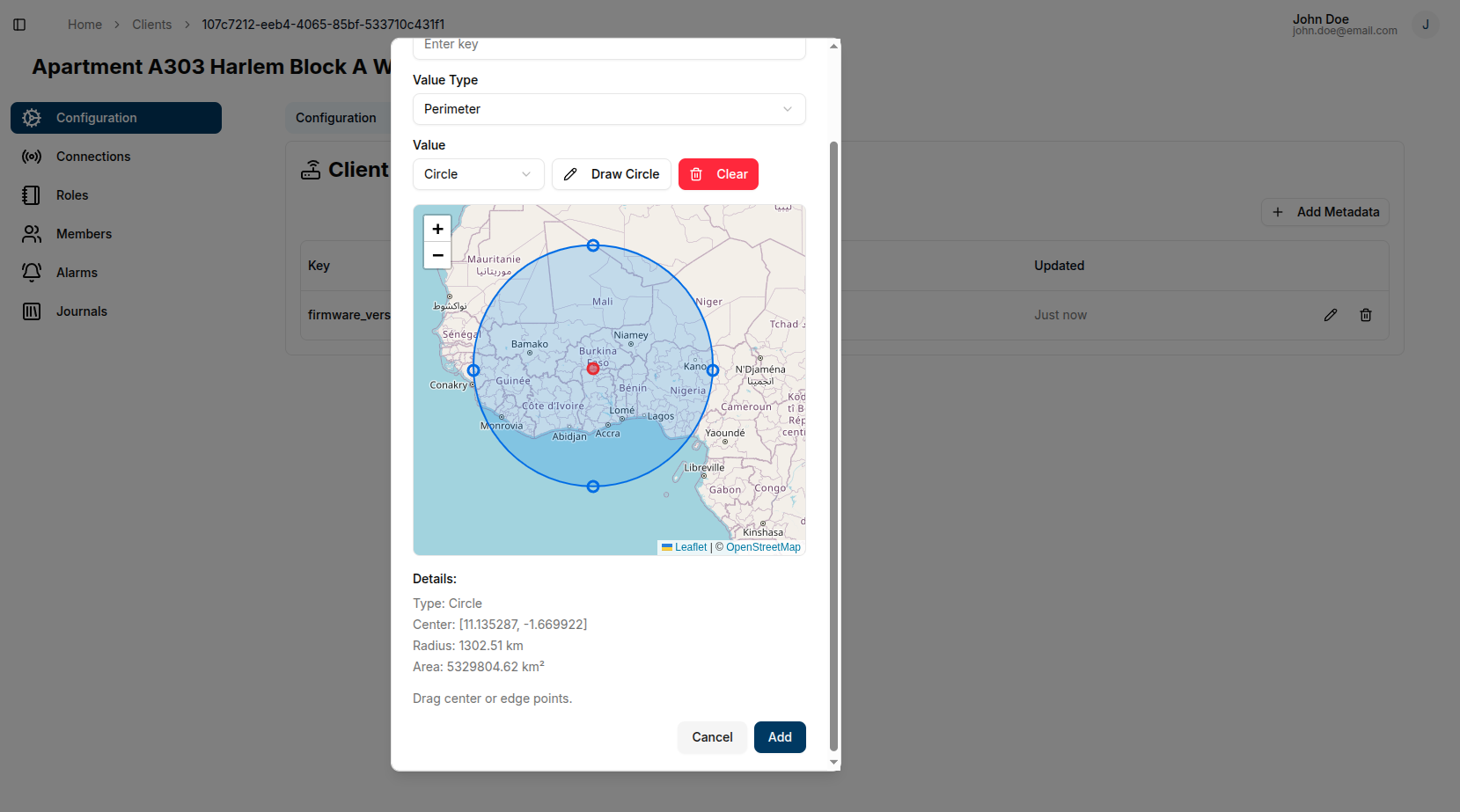
Circle Perimeter
- Select Perimeter as the value type
- Choose Circle from the perimeter options
- Click Draw Circle
- Click to place the center point
- Move the cursor away from center to set the radius
Editing Circles:
- Drag the center to move the circle
- Drag points on the circumference to adjust radius
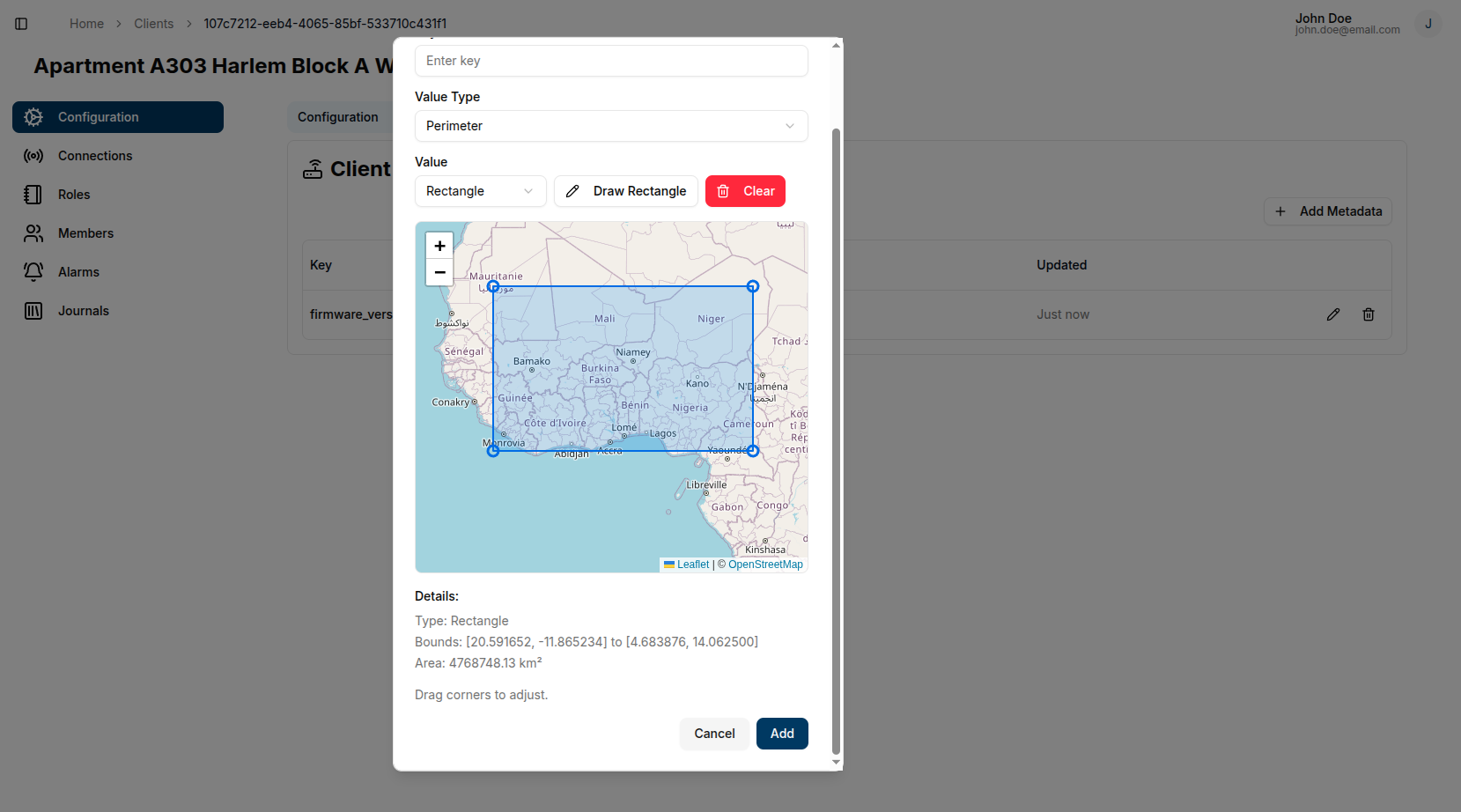
Rectangle Perimeter
- Select Perimeter as the value type
- Choose Rectangle from the perimeter options
- Click Draw Rectangle
- Click to place the first corner
- Click to place the opposite corner
Editing Rectangles:
- Drag any of the 4 corner points to resize
Editing Metadata
- Click the pencil icon next to any metadata entry
- Modify the key, value type, or value as needed
- Click Save to confirm changes or Cancel to discard
Deleting Metadata
- Click the trash icon next to the metadata entry
- Confirm deletion in the dialog
API / CLI Integration
Entities provisioned via the Magistrala API or CLI must store metadata in the same flat format that the UI uses. Metadata is a JSON object where each user-defined key maps directly to the top level — there is no wrapper object.
Internal Storage Format
Each metadata entry stored by the UI follows this structure:
{
  "myKey": {
    "value": "my value",
    "type": "string",
    "updatedAt": "2026-01-01T00:00:00.000Z"
  }
}| Field | Description |
|---|---|
value | The actual data value |
type | One of: string, integer, double, boolean, json, location, perimeter |
updatedAt | ISO 8601 timestamp of the last update |
Provisioning via API
To set metadata on an entity via the API so it is recognized by the UI, structure the metadata as a flat object at the top level:
{
  "metadata": {
    "environment": {
      "value": "production",
      "type": "string",
      "updatedAt": "2026-01-01T00:00:00.000Z"
    },
    "firmwareVersion": {
      "value": "2.4.1",
      "type": "string",
      "updatedAt": "2026-01-01T00:00:00.000Z"
    }
  }
}
Raw (unwrapped) values are also accepted — the UI will infer the type and display them — but they will not have a tracked updatedAt timestamp.
Location Format
Location metadata has a specific value structure used by dashboard map widgets:
{
  "location": {
    "value": {
      "latitude": 48.8566,
      "longitude": 2.3522,
      "address": "Paris, France"
    },
    "type": "location",
    "updatedAt": "2026-01-01T00:00:00.000Z"
  }
}
Breaking Change: Removal of metadata.ui Wrapper
In version 0.18.5 and earlier, the Magistrala UI stored all user-defined metadata nested under a ui key:
{
  "ui": {
    "environment": {
      "value": "production",
      "type": "string",
      "updatedAt": "2026-01-01T00:00:00.000Z"
    }
  }
}
This wrapper has been removed. Metadata is now stored directly at the top level:
{
  "environment": {
    "value": "production",
    "type": "string",
    "updatedAt": "2026-01-01T00:00:00.000Z"
  }
}
Best Practices
- Use descriptive keys that clearly identify the metadata purpose
- Choose appropriate value types to ensure data integrity
- For location data, verify coordinates are accurate before saving
- When creating perimeters, ensure adequate zoom level for precision
- Use JSON metadata for complex structured data that doesn't fit other types