
Messaging
Learn how to publish and subscribe to messages in Magistrala using HTTP, MQTT, CoAP and WebSocket protocols with broker and subtopic support.
Once a channel is created and client is connected to it, it can start to publish messages on the channel. The following section will provide an example of message publishing for each of the supported protocols. Magistrala currently supports secure versions of the MQTT, HTTP, WS and COAP protocols. To use TLS and DTLS for TCP and UDP requests respectively, we will require a Certificate Authority(CA) certificate. The CA certificate used to sign Magistrala server certificates and keys is provided by a well known and Trusted CA, Let's Encrypt. To use this you can download the pem encodedca certificate. It is possible to use your default CA chain on your personal computer which will include Let's Encrypt's certificate. If using an embedded device you will be required to download the certificate.
CLI tools
To send messages from your workstation you can use protocol specific CLI tools to send and receive messages from Magistrala. We provide examples for sending messages using the following CLI tools:
- For HTTPS an example is provided using curl
- For MQTTS an example is provided using mosquitto tools
- For WSS an example is provided using wscat
- For COAPS and example is provided using coap-cli
Send message
To start sending messages:
-
Go to the Channels page
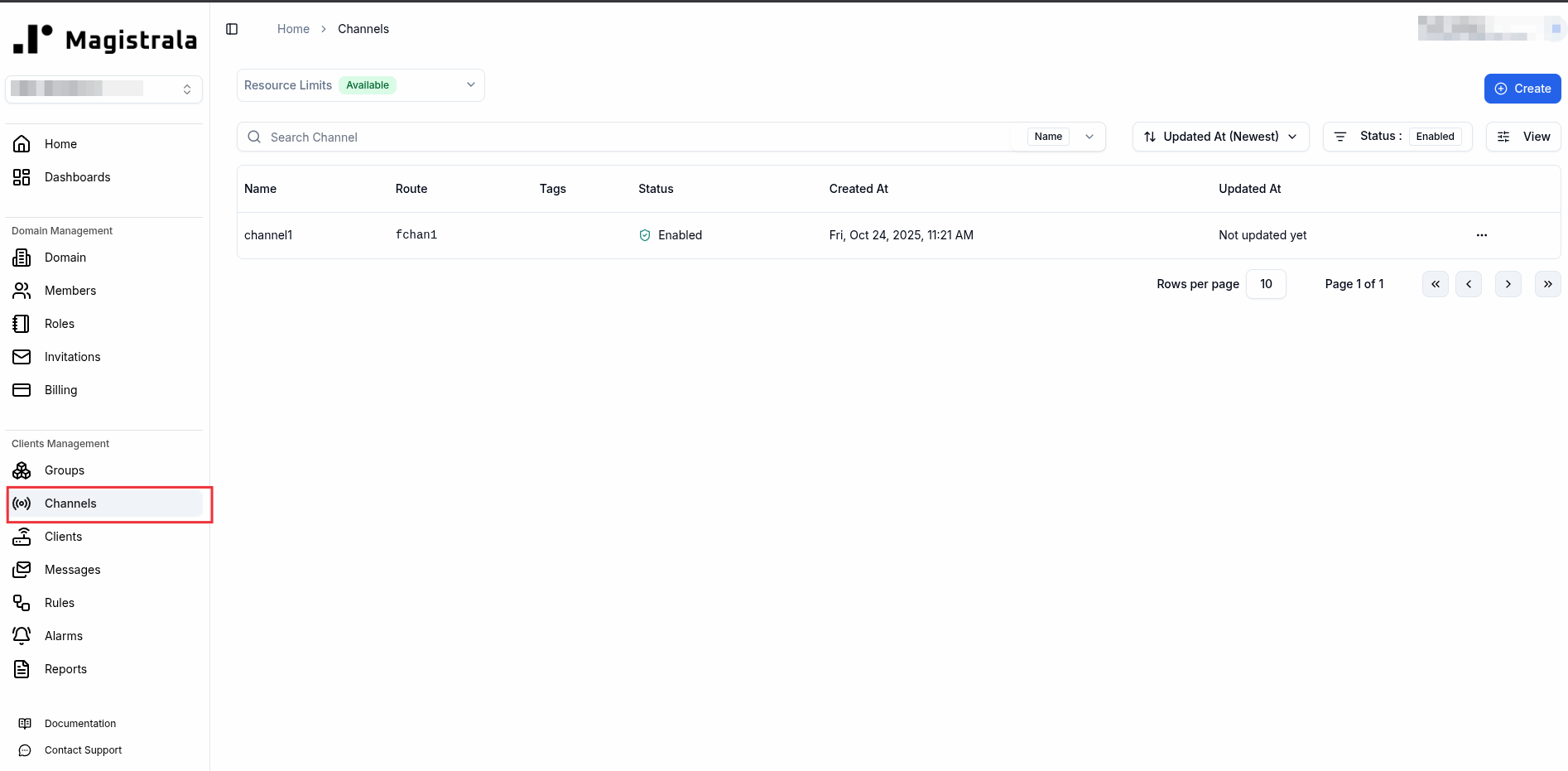
NOTE To be able to view messages on this page that are sent to the channel, please ensure you create a rule to store messages to the internal database. A step by step instruction is provided in the rules section of the user docs.
-
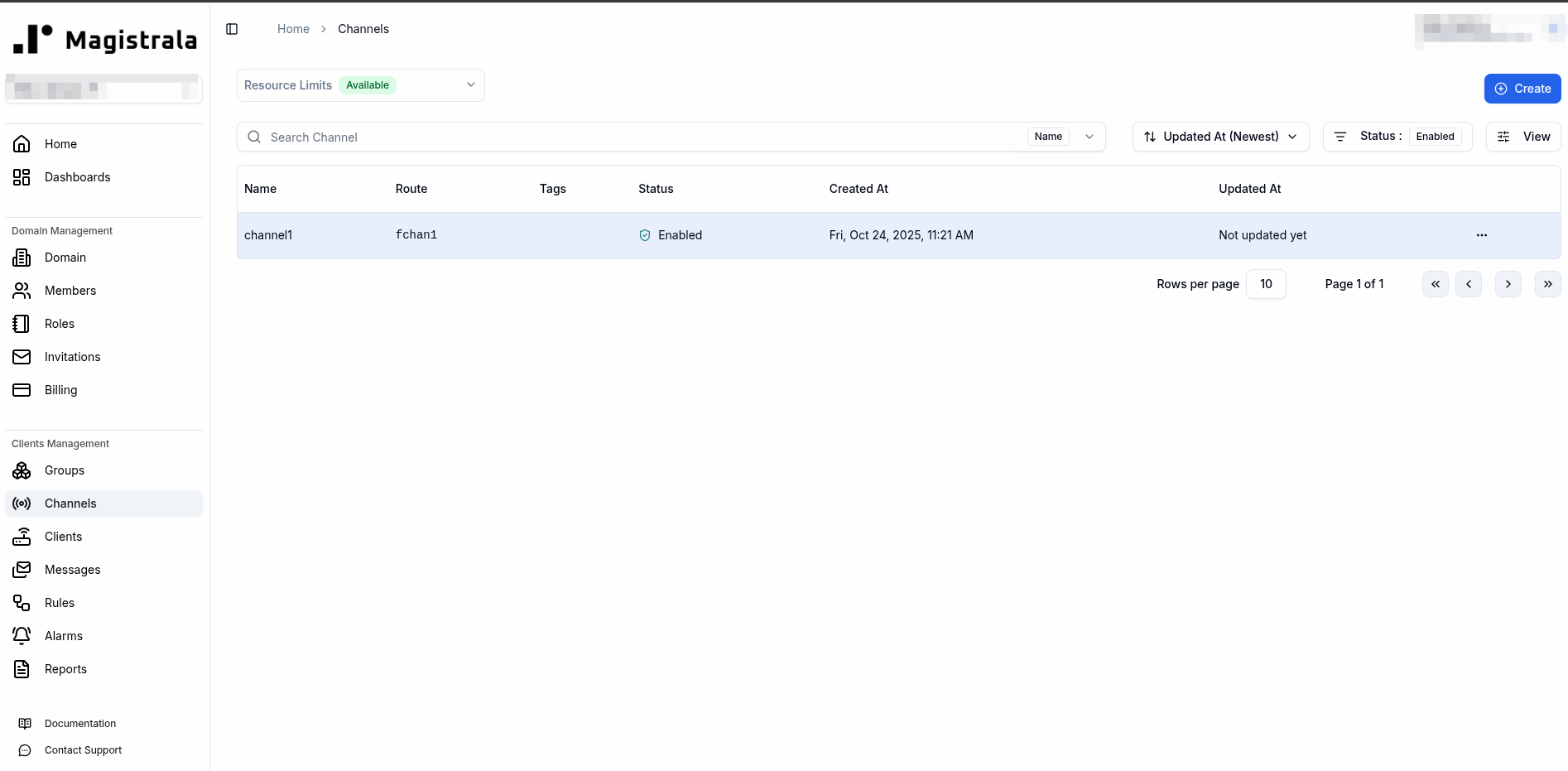
Click on the channel you would like to send messages to
-
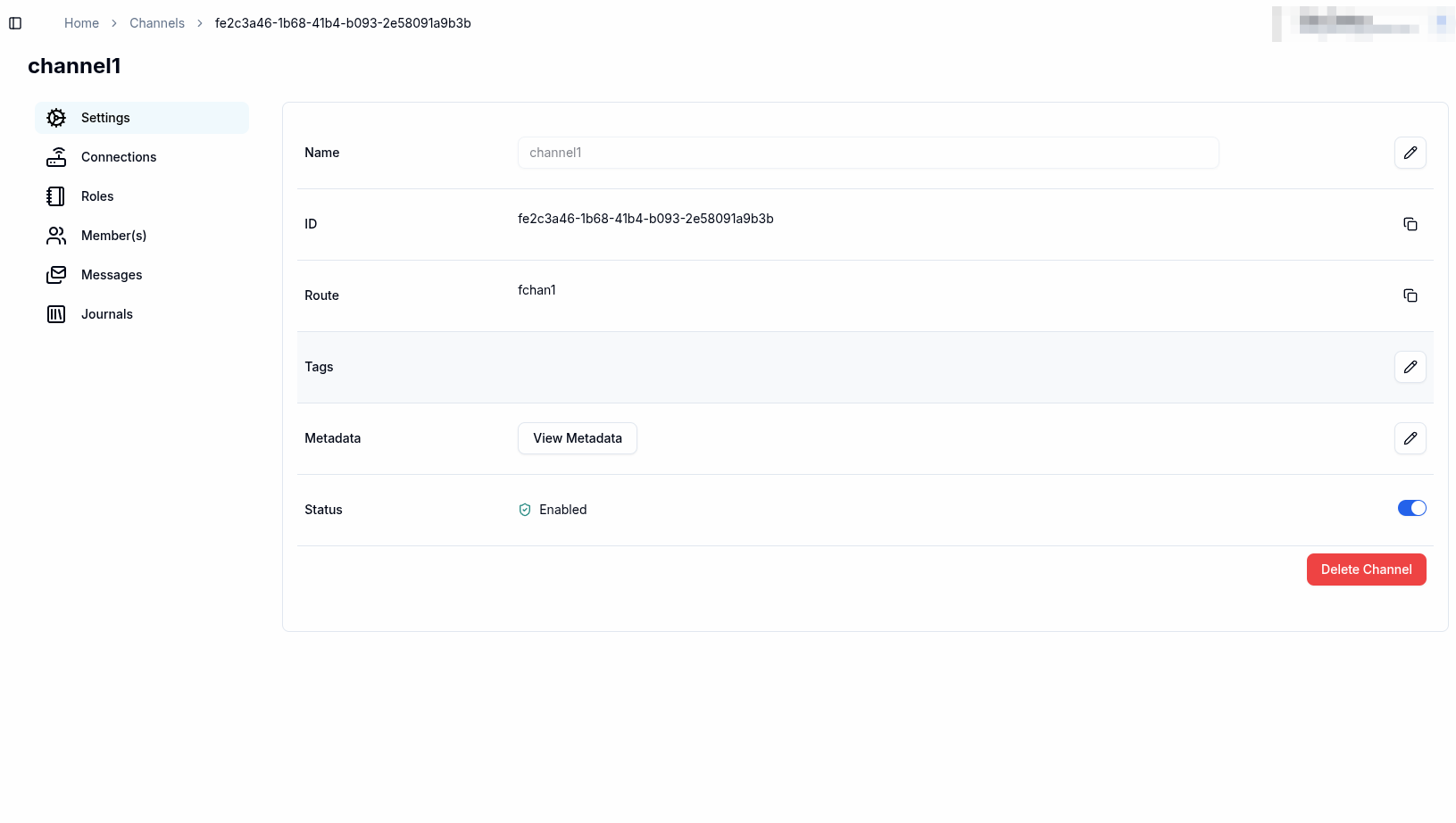
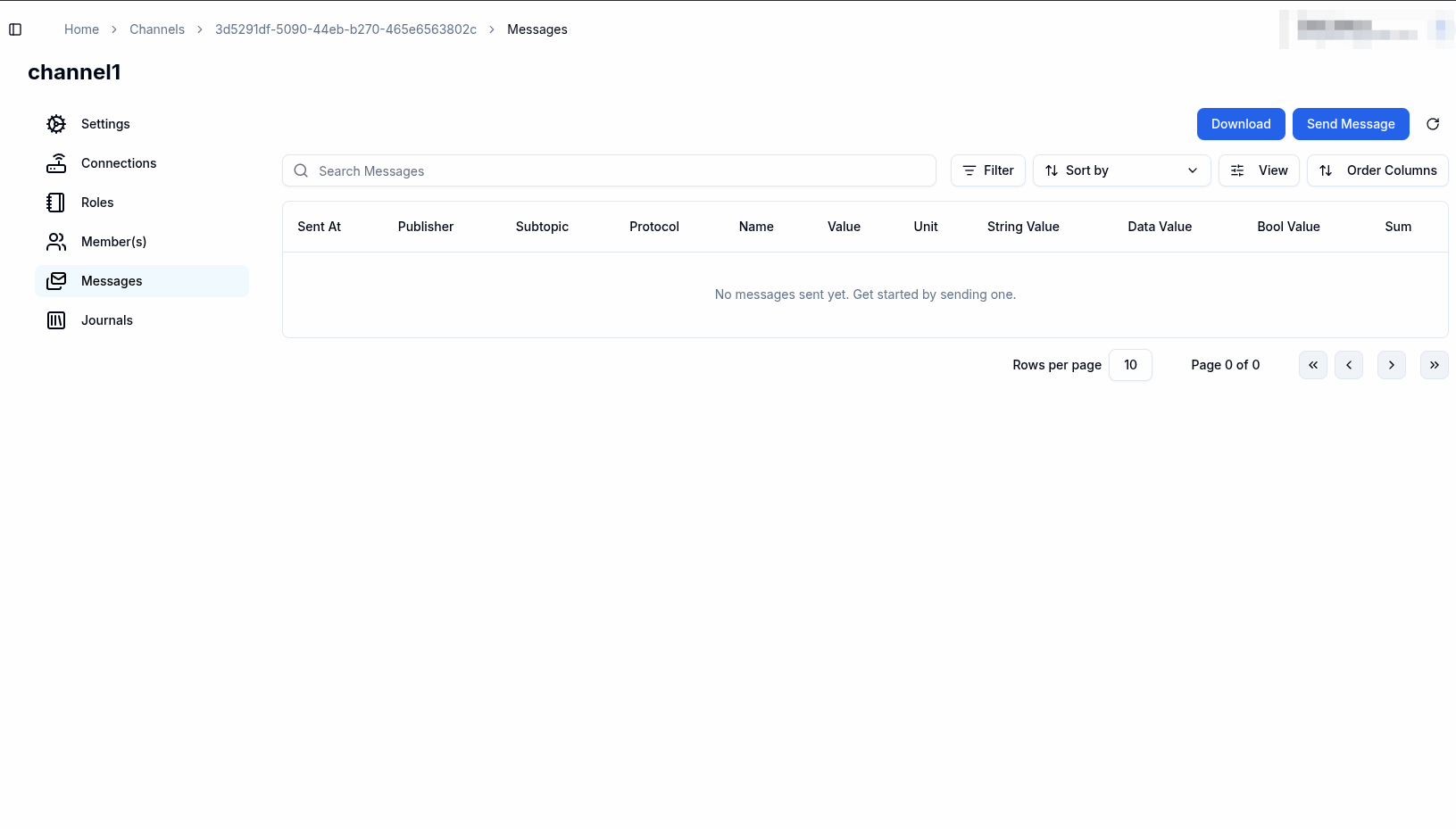
Click on the messages tab on the View channel page
-
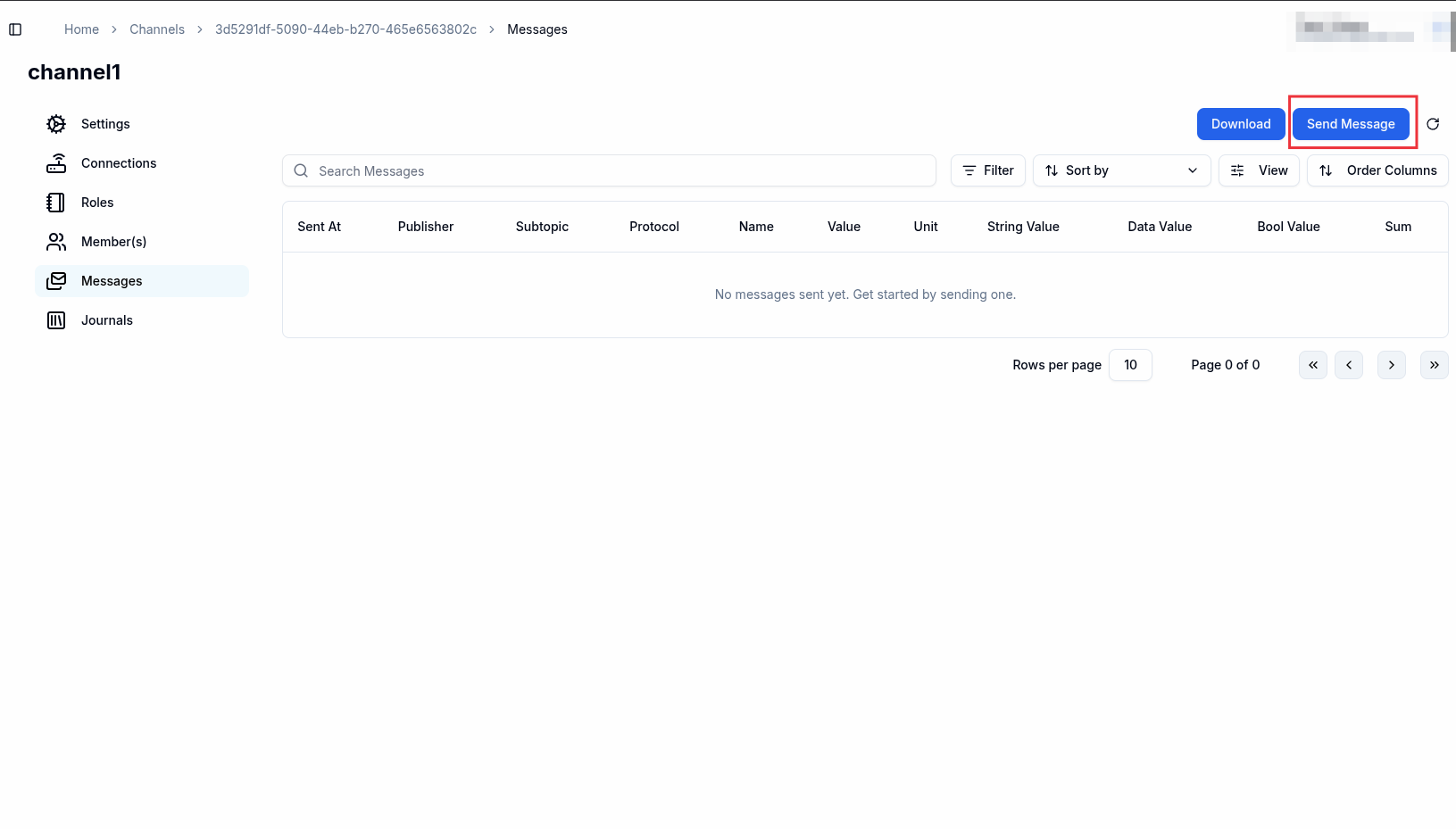
Click on the Send message button on the top right hand side of the page
-
Fill in the details of your message:
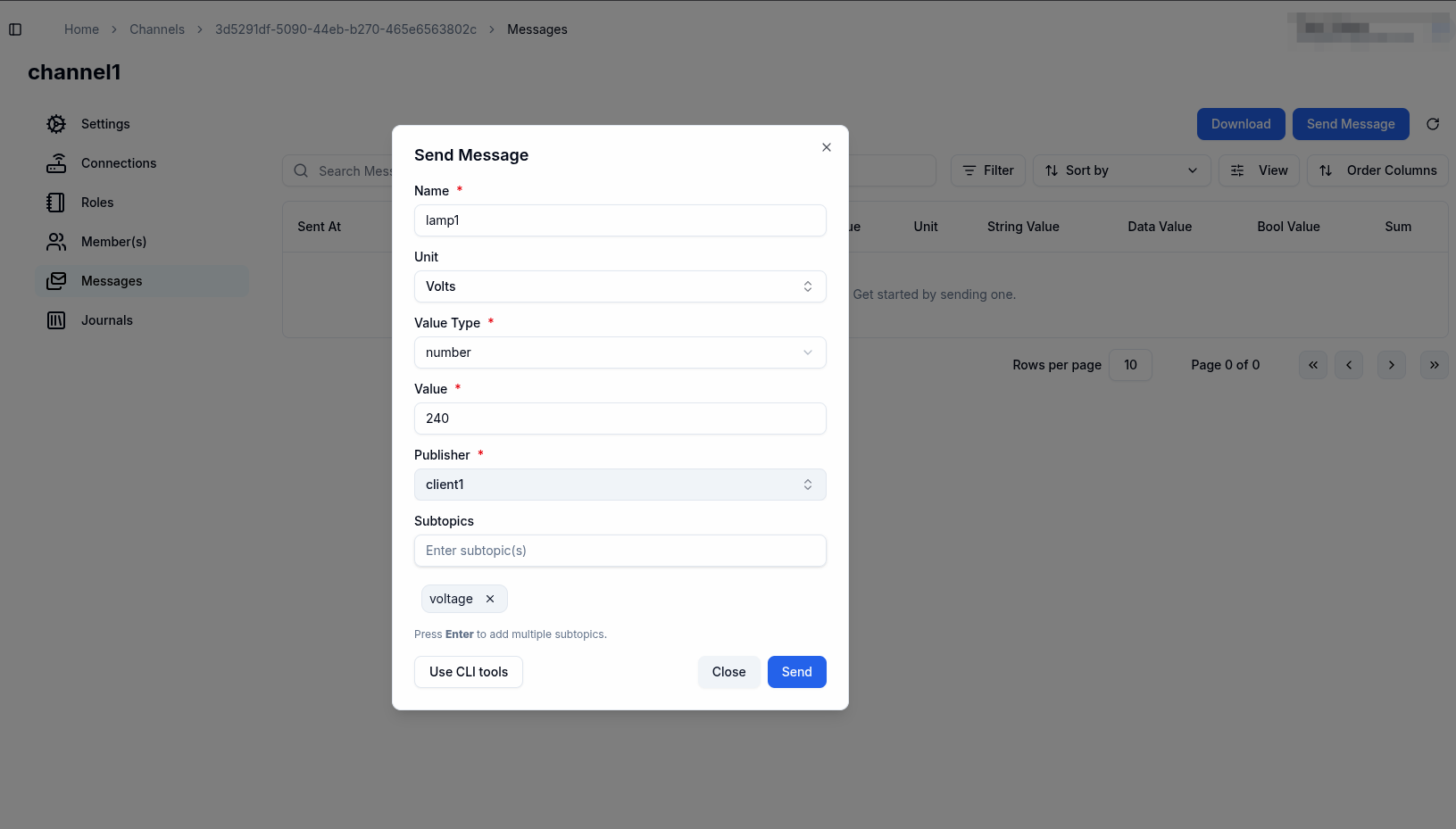
At this point you can choose to click the Send button, this will send the message using the HTTP protocol and your UserID as the publisher of the message. If you wish to use the cli tools you can click on the Use CLI Tools button
-
Using CLI tools
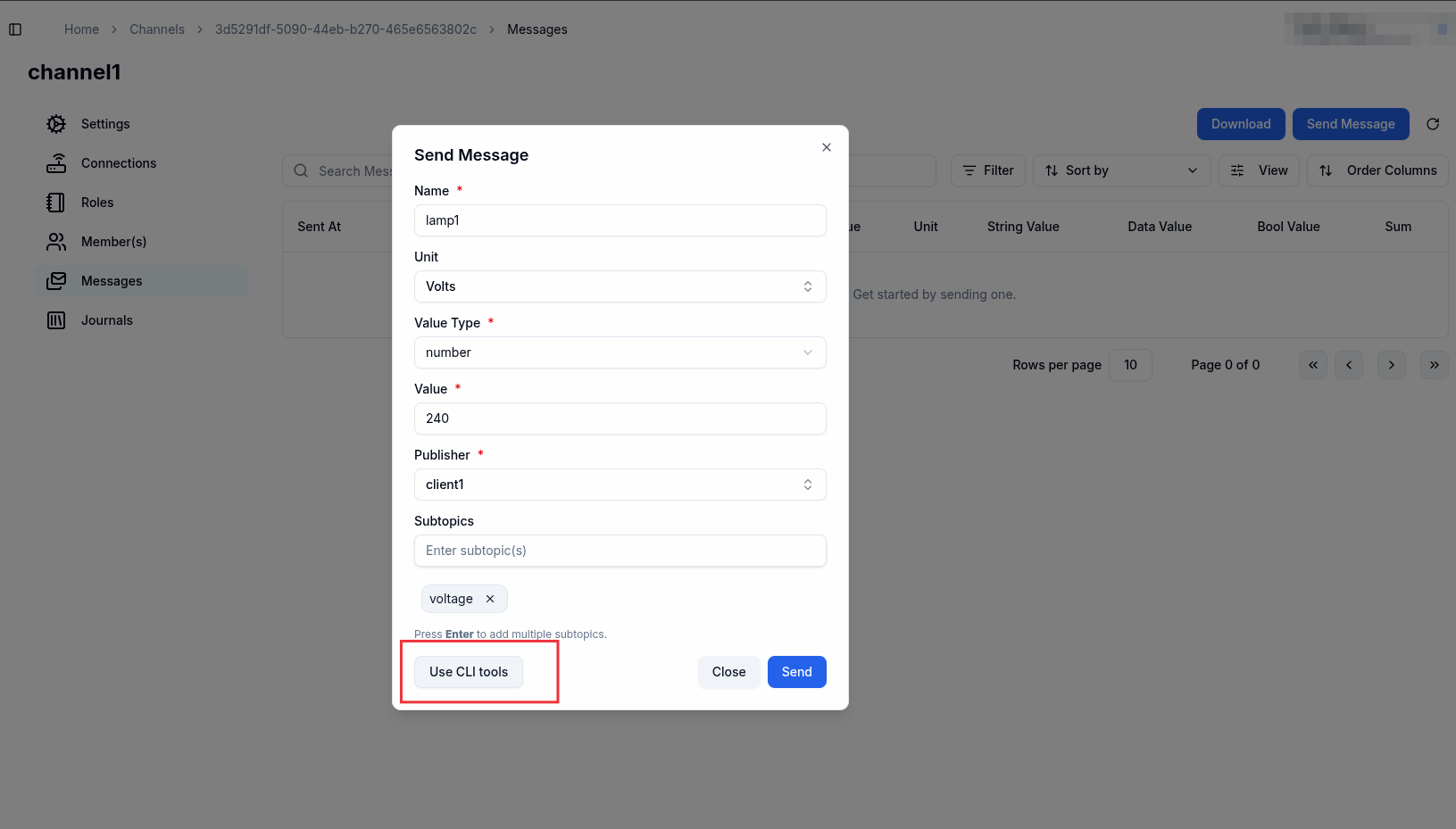
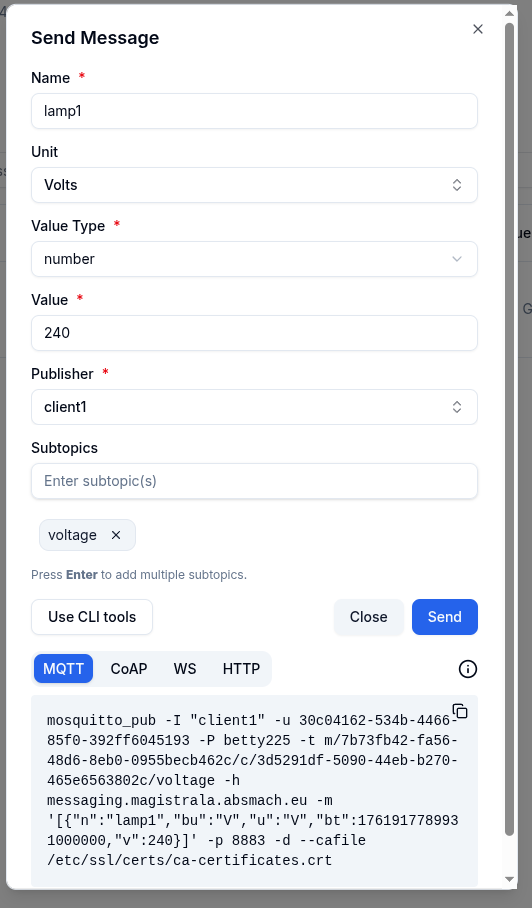
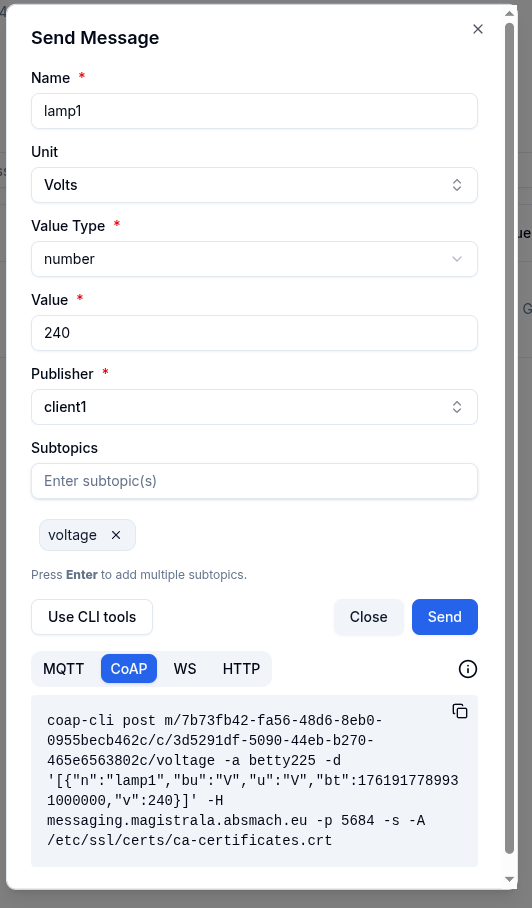
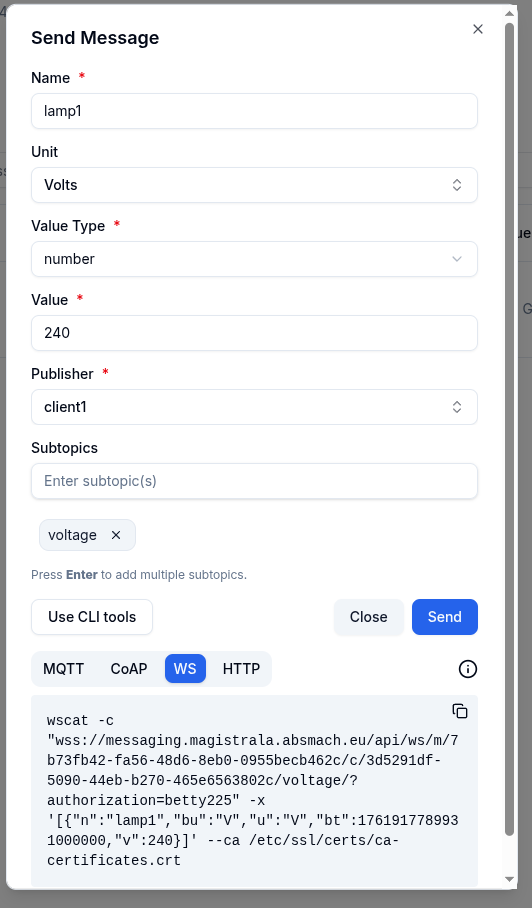
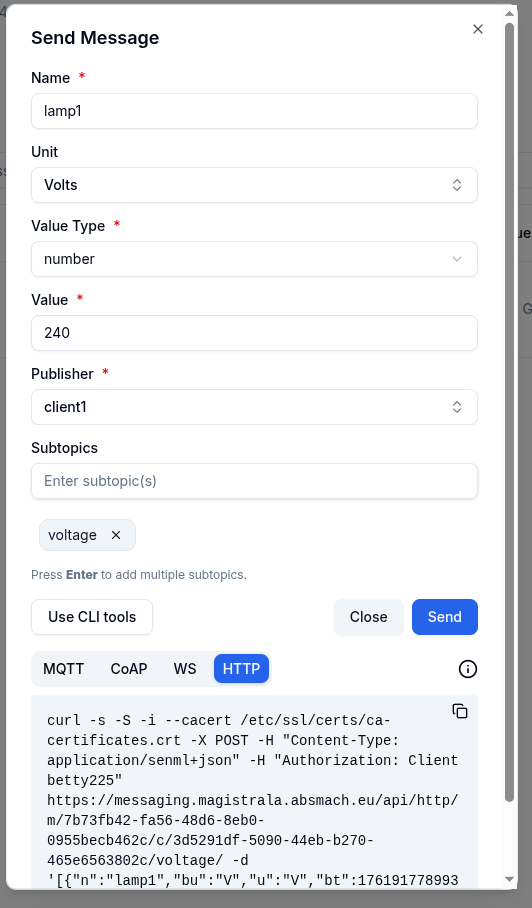
You can copy these commands to your terminal and execute them. The messages sent will be associated with the client using the desired protocol.
HTTP
To publish message over channel with a client, the command should be in the format:
curl -s -S -i --cacert /etc/ssl/certs/ca-certificates.crt -X POST -H "Content-Type: application/senml+json" -H "Authorization: Client <client_secret>" https://messaging.magistrala.absmach.eu/http/m/<domain_id>/c/<channel_id> -d '[{"bn":"some-base-name:","bt":1.276020076001e+09, "bu":"A","bver":5, "n":"voltage","u":"V","v":120.1}, {"n":"current","t":-5,"v":1.2}, {"n":"current","t":-4,"v":1.3}]'Note that if you're going to use SenML message format, you should always send messages as an array.
For more information about the HTTP messaging service API, please check out the API documentation.
MQTT
To send and receive messages over MQTT you could use Mosquitto tools, or Paho if you want to use MQTT over WebSocket.
To publish message over channel, client should call following command:
mosquitto_pub -I <client_name> -u <client_id> -P <client_secret> -t m/<domain_id>/c/<channel_id> -h messaging.magistrala.absmach.eu -m '[{"bn":"some-base-name:","bt":1.276020076001e+09, "bu":"A","bver":5, "n":"voltage","u":"V","v":120.1}, {"n":"current","t":-5,"v":1.2}, {"n":"current","t":-4,"v":1.3}]'To subscribe to channel, client should call following command:
mosquitto_sub -I <client_name> -u <client_id> -P <client_secret> -t m/<domain_id>/c/<channel_id> -h messaging.magistrala.absmach.euIf you want to use standard topic such as m/<domain_id>/c/<channel_id> with SenML content type (JSON or CBOR), you should use following topic m/<domain_id>/c/<channel_id>.
If you are using TLS to secure MQTT connection, add --cafile docker/ssl/certs/ca.crt
to every command.
CoAP
CoAP adapter implements CoAP protocol with DTLS using underlying UDP and according to RFC 7252. To send and receive messages over CoAP, you can use CoAP CLI. To set the add-on, please follow the installation instructions provided at CoAP CLI.
Examples:
To subscribe to a topic:
coap-cli get m/<domain_id>c/<channel_id>/subtopic -auth <client_secret> -o -h messaging.magistrala.absmach.eu -p 5684 -sTo send a message to a channel with a topic:
coap-cli post m/<domain_id>c/<channel_id>/subtopic -auth <client_secret> -d "hello world" -h messaging.magistrala.absmach.eu -p 5684 -sTo send a message, use POST request. To subscribe, send GET request with Observe option (flag o) set to false.
WebSocket
To publish and receive messages over channel using web socket, you should first send handshake request to /m/<domain_id>/c/<channel_id> path. Don't forget to send Authorization header with client authorization token. In order to pass message content type to WS adapter you can use Content-Type header.
To connect and subscribe to a channel using WS the client shoudl use the command:
wscat -c "wss://messaging.magistrala.absmach.eu/api/ws/m/<domain_id>/c/<channel_id>/<subtopic>/?authorization=<client_secret"To send a message to a channel with a topic, use:
wscat -c "wss://messaging.magistrala.absmach.eu/api/ws/m/<domain_id>/c/<channel_id>/<subtopic>/?authorization=<client_secret" -x '[{"n":"voltage","bu":"V","u":"V","bt":1761838262251000000,"v":350}]'MQTT-over-WS
Magistrala also supports MQTT-over-WS, along with pure WS protocol. this bring numerous benefits for IoT applications that are derived from the properties of MQTT - like QoS and PUB/SUB features.
There are 2 reccomended Javascript libraries for implementing browser support for Magistrala MQTT-over-WS connectivity:
As WS is an extension of HTTP protocol, Magistrala exposes it on port 8008, so it's usage is practically transparent.
Additionally, please notice that since same port as for HTTP is used (8008), and extension URL /mqtt should be used -
i.e. connection URL should be ws://<host_addr>/mqtt.
For quick testing you can use HiveMQ UI tool.
Here is an example of a browser application connecting to Magistrala server and sending and receiving messages over WebSocket using MQTT.js library:
<script src="https://unpkg.com/mqtt/dist/mqtt.min.js"></script>
<script>
    // Initialize a mqtt variable globally
    console.log(mqtt)

    // connection option
    const options = {
        clean: true, // retain session
        connectTimeout: 4000, // Timeout period
        // Authentication information
        clientId: '14d6c682-fb5a-4d28-b670-ee565ab5866c',
        username: '14d6c682-fb5a-4d28-b670-ee565ab5866c',
        password: 'ec82f341-d4b5-4c77-ae05-34877a62428f',
    }

    var channelId = '08676a76-101d-439c-b62e-d4bb3b014337'
    var domainId = '6a45444c-4c89-46f9-a284-9e731674726a'
    var topic = 'm/' + domainId + '/c/' + channelId

    // Connect string, and specify the connection method by the protocol
    // ws Unencrypted WebSocket connection
    // wss Encrypted WebSocket connection
    const connectUrl = 'ws://messaging.magistrala.absmach.eu/mqtt'
    const client = mqtt.connect(connectUrl, options)

    client.on('reconnect', (error) => {
        console.log('reconnecting:', error)
    })

    client.on('error', (error) => {
        console.log('Connection failed:', error)
    })

    client.on('connect', function () {
        console.log('client connected:' + options.clientId)
        client.subscribe(topic, { qos: 0 })
        client.publish(topic, 'WS connection demo!', { qos: 0, retain: false })
    })

    client.on('message', function (topic, message, packet) {
        console.log('Received Message:= ' + message.toString() + '\nOn topic:= ' + topic)
    })

    client.on('close', function () {
        console.log(options.clientId + ' disconnected')
    })
</script>
N.B. Eclipse Paho lib adds sub-URL /mqtt automaticlly, so procedure for connecting to the server can be someclient like this:
var loc = { hostname: "messaging.magistrala.absmach.eu", port: 8008 };
// Create a client instance
client = new Paho.MQTT.Client(loc.hostname, Number(loc.port), "clientId");
// Connect the client
client.connect({ onSuccess: onConnect });
Subtopics
In order to use subtopics and give more meaning to your pub/sub channel, you can simply add any suffix to base /m/<domain_id>/c/<channel_id> topic.
Example subtopic publish/subscribe for bedroom temperature would be m/<domain_id>/c/<channel_id>/bedroom/temperature.
Subtopics are generic and multilevel. You can use almost any suffix with any depth.
Topics with subtopics are propagated to Message broker in the following format channels.<channel_id>.<optional_subtopic>.
Our example topic m/<domain_id>/c/<channel_id>/bedroom/temperature will be translated to appropriate Message Broker topic channels.<channel_id>.bedroom.temperature.
You can use multilevel subtopics, that have multiple parts. These parts are separated by . or / separators.
When you use combination of these two, have in mind that behind the scene, / separator will be replaced with ..
Every empty part of subtopic will be removed. What this means is that subtopic a///b is equivalent to a/b.
When you want to subscribe, you can use the default Message Broker, NATS, wildcards * and >. Every subtopic part can have * or > as it's value, but if there is any other character beside these wildcards, subtopic will be invalid. What this means is that subtopics such as a.b*c.d will be invalid, while a.b.*.c.d will be valid.
Authorization is done on channel level, so you only have to have access to channel in order to have access to it's subtopics.
Note: When using MQTT, it's recommended that you use standard MQTT wildcards + and #.