Rules Engine
Automate IoT workflows with custom rules
Overview
The Rules Engine helps automate message processing using visual workflows composed of input sources, logic evaluations, and output destinations. Users can define rules by visually combining input, logic, and output nodes to determine how incoming messages are processed, evaluated, and responded to.
Features
1. Creation and Management
- Create Rules: Define the name of a new rule and initiate creation.
- Quick Actions: View, copy ID, enable/disable, or delete a rule directly from the list.
2. Node Configuration
- Input Nodes: Attach an MQTT subscriber input by selecting the channel and topic.
- Logic Nodes: Define conditions using comparison blocks, Lua scripts, or Go scripts.
- Output Nodes: Output processed data to MQTT publishers, Email recipients, or PostgreSQL databases.
3. Scripting and Templating
- Lua Script Editor: Use custom Lua scripts with a required
logicFunction()for logic processing. - Go Script Editor: Write Go-based logic for more advanced use cases (requires Go syntax compliance).
- Go Text Templating: Use dynamic value injection with:
{{.Result}}{{.Result.<key>}}{{.Message.<key>}}
4. Scheduling and Execution
- Scheduling: Define execution windows with start time, specific time, recurring intervals, and periods.
- Connection Layout: Visually connect all nodes to complete and activate a rule.
Use Cases
Here are some practical examples of how you can use the Rules Engine:
-
Temperature Alerts: Notify users by email when temperature exceeds safe limits. -
Message Filtering: Only forward messages with specific fields or values. -
Unit Conversion: Convert sensor data from Celsius to Fahrenheit before publishing.
Create a Rule
To create a new rule, navigate to the Rules section and click the + Create button.

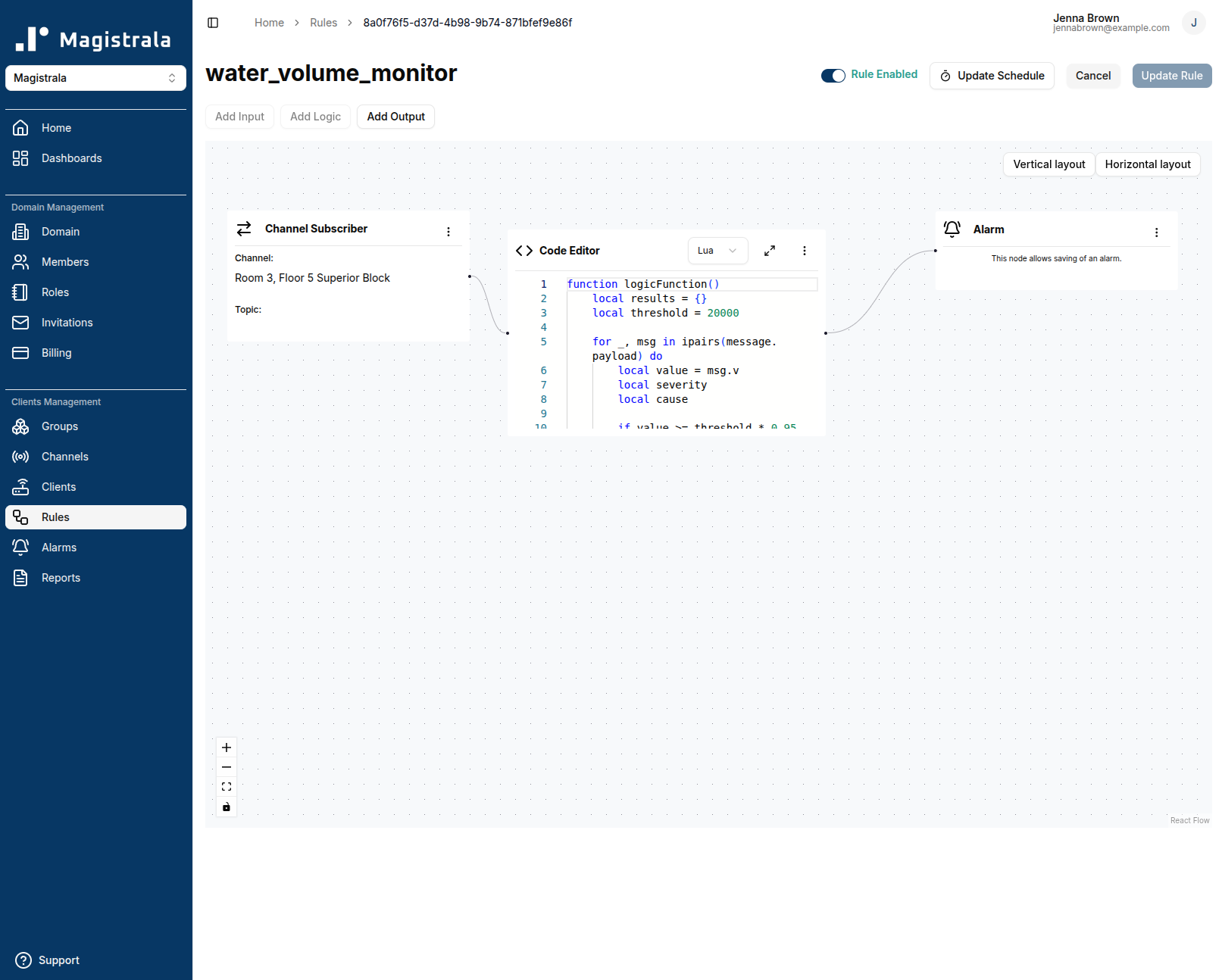
You will be redirected to the rule configuration page. A valid rule must include at least three nodes:
- Input Node – defines the data source.
- Logic Node – applies conditions or transformations.
- Output Node – specifies the resulting action.
The rule cannot be saved unless these required nodes are present.

Click Save Rule to open a popup dialog where you can enter the rule name and assign tags.

Once created, the rule is added to the rules list with the following details:
- Rule Name
- Status – Enabled or Disabled
- Creation Date
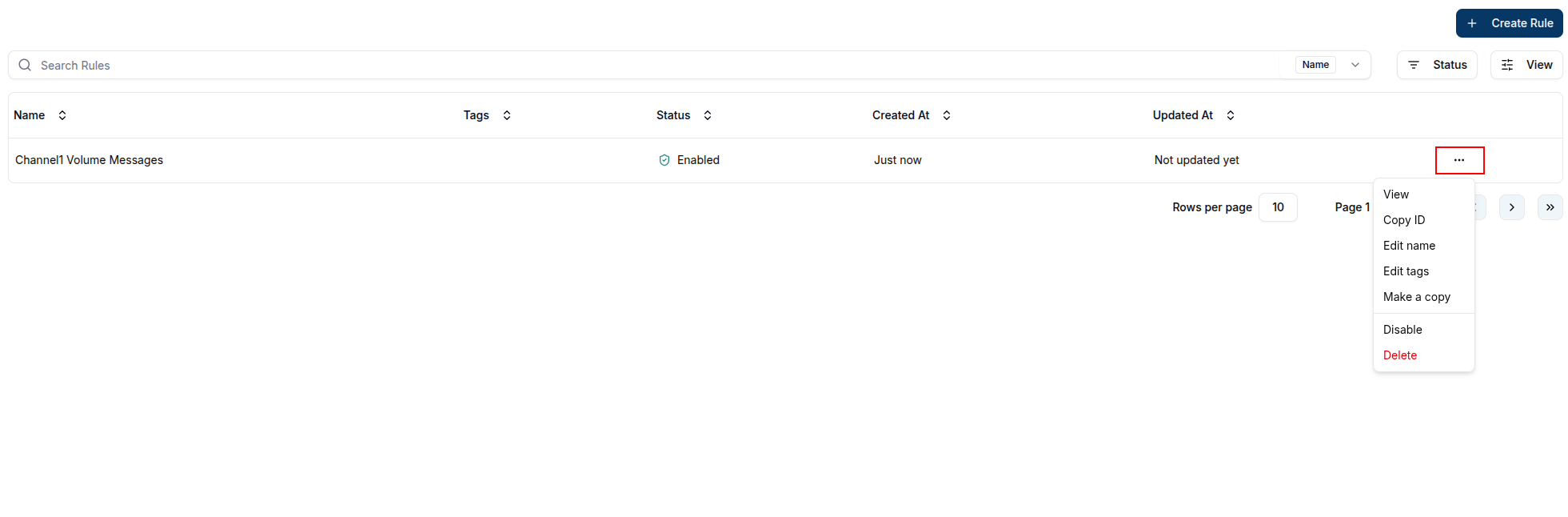
Each rule entry also provides quick actions for:
- Viewing rule details
- Copying the rule ID
- Enabling/Disabling the rule
- Edit the rule name or tags
- Deleting the rule
Rule Configuration
On the rule page, you can configure the following:
1. Input Node
- Currently, only one input node is supported per rule.

-
Select Channel Subscriber as the input type.
-
Choose the channel and topic to subscribe to.

-
The input node will appear in the layout.

2. Logic Node
After setting the input, define your rule’s logic using one of three options:
- Comparison Block
- Lua Script Editor
- Go Script Editor
The logic nodes support different message payloads as inputs.
To utilize the message payload, you can use message.<key> in the input. For example if your message is a single SenML message, you can do message.payload.v to get the value.
Comparison Block
The Comparison Block lets you define conditions visually without writing a script. Each condition evaluates a field from the incoming message against a value you supply. When all conditions pass, the connected output nodes are triggered.

Input
Every input must start with message. followed by the path to the field you want to inspect.
Two access styles are supported:
| Style | Syntax | Example |
|---|---|---|
| Dot notation | message.<field>.<field> | message.payload.temperature |
| Bracket (array index) notation | message.<field>[<index>].<field> | message.payload[1].v |
You can mix both styles in the same path:
message.payload[1].v          ← SenML array, first record's numeric value
message.payload.sensor.temp   ← nested object
message.status                ← top-level field
SenML tip: SenML messages arrive as an array, so the value field is accessed with
message.payload[1].v(numeric),message.payload[1].vs(string), ormessage.payload[1].vb(boolean).
Operators
| Operator | Symbol | Description |
|---|---|---|
| Equal | == | Value matches exactly |
| Not equal | ~= | Value does not match |
| Greater than | > | Value is strictly greater |
| Less than | < | Value is strictly less |
| Greater than or equal | >= | Value is greater or equal |
| Less than or equal | <= | Value is less or equal |
Data Types
Set the Type dropdown to match the kind of value you are comparing against:
| Type | When to use | Example values |
|---|---|---|
num | Any number — integer or decimal | 20, 3.14, 100, 0.5 |
string | Text values | "alarm", "active", "room-1" |
bool | True/false flags | true, false |
Choosing the wrong type will cause the comparison to behave unexpectedly:
- Use
numfor any threshold check (temperature, pressure, count, etc.). - Use
stringwhen comparing labels, status codes, or names. - Use
boolwhen the field is a boolean flag (e.g., a pump on/off state).
Multiple Conditions
Click Add Condition to chain more than one comparison. Each additional condition requires a logical join:
| Join | Behaviour |
|---|---|
and | All conditions must be true |
or | At least one condition must be true |

Example — trigger when flow is low AND pump is running:
| Input | Operator | Type | Value | Join |
|---|---|---|---|---|
message.payload[1].v | < | num | 50 | — |
message.pump_running | == | bool | true | and |
Example — alert on high H₂S OR high LEL reading:
| Input | Operator | Type | Value | Join |
|---|---|---|---|---|
message.h2s | > | num | 10 | — |
message.lel | > | num | 20 | or |
Script Editors
The script editor allows you to toggle between Lua and Go modes using the selector at the top of the editor:

Toggle between:
- Lua script mode (default)
- Go script mode
Lua Script Editor
Craft your own logic in Lua by implementing a logicFunction() that returns either a primitive value or a table.

Example:
function logicFunction()
  local converted_temp = (message.payload.v * 1.8 + 32)
  return {n = "Temp_fahrenheit", v = converted_temp, u = "°F", }
end
return logicFunction()function logicFunction()
return (message.payload.v * 1.8 + 32)
end
return logicFunction()Go Script Editor
Write Go-based logic for advanced use cases. Return a value or struct:

Example:
  package main

  import (
      m "messaging"
  )
  func logicFunction() any {
      return m.message.Payload
  }
Note:
Output nodes only trigger if the script returns a truthy value.
If the logic node returnsfalse, the connected output nodes will not be executed.
This allows for conditional flows, ensuring actions such as MQTT publishing, email alerts, or database inserts only occur when the specified logic conditions are satisfied.
3. Output Node
You can add one or more output nodes. The following nodes are supported:
- Channel publisher
- PostgreSQL
- Alarm
- Magistrala DB
- Slack

Channel Publisher
Enables you to specify the output channel and topic. The result of the logic node is published to this topic.
Select the Channel Publisher as the output node and enter the channel and topic.


Send results via email with templated fields:

Current Volume- Use dynamic template fields:
{{.Result}}— the entire result from logic block{{.Result.<key>}}— a specific field from the result{{.Message.<key>}}— a field from the original message
Current volume is {{(index .Result 0).v}} {{(index .Result 0).u}}.
PostgreSQL
Store message processing results to your PostgreSQL database. Select the PostgreSQL output node option and enter the following information:

- Host
- Port
- Username
- Password
- Database name
- Table name
- Map data to table columns using templates
{
  "channel": "{{.Message.Channel}}",
  "value":   "{{(index .Result 0).v}}",
  "unit":    "{{(index .Result 0).u}}"
}
Internal DB
To be able to store messages in the internal Magistrala DB, you need to create a rule that processes the results. More information about this is in the Store Messages section.

Alarms
An alarm output will enable you to be able to generate alarms in the case where a threshold has been exceeded. More information about this node is provided in the Alarms section.
Slack
Slack output enables you to send notifications to a Slack channel when a rule is triggered.
To configure a Slack output node, provide the following fields:

-
Token: Your Slack App token (used for authentication).
-
Channel ID: The ID of the Slack channel where notifications will be sent.
-
Message: A valid Slack message payload in JSON format.
- You can use dynamic template fields in the message object.
- The payload must follow Slack's structure (e.g.,
text,blocks,attachment).
Example:
{
  "text": "Temperature alert for {{.Message.sensor}}",
  "attachments": [
    {
      "pretext": "Threshold exceeded",
      "text": "Current temperature is {{.Result.v}} {{.Result.u}}"
    }
  ],
  "icon_url": "http://lorempixel.com/48/48"
}
Dynamic Variables and Templates
You can inject dynamic values from your message or logic result using templating variables.
Available template variables:
| Variable | Description | Example |
|---|---|---|
{{.Result}} | Entire output from the logic node. | {{.Result}} |
{{.Result.<key>}} | Field from the logic result. | {{.Result.v}} |
{{.Message.<key>}} | Field from the input message | {{.Message.Channel}} |
{{(index .Result 0)}} | Access slices/arrays | {{(index .Result 0).v}} |
These variables work in outputs like:
-
Email (body)
-
PostgreSQL (column mapping)
Current temperature is {{.Result.CelValue}}°C or ({{.Result.FarValue}}°F).{
"channel": "{{.Message.Channel}}",
"value": "{{(index .Result 0).v}}",
"unit": "{{(index .Result 0).u}}"
}Enable or Disable Rules
To enable or disable a rule:
-
Use the toggle at the top right of the rule page.

-
You can also enable/disable directly from the rule list using the quick actions menu

Add a Scheduler
You can configure a scheduler to define when a rule executes.

Fields:
- Start Time: Date when the schedule becomes active
- Time: Time of day the rule should run
- Recurring Interval: Unit of recurrence (e.g., daily, hourly)
- Recurring Period: Frequency of execution (e.g., every 2 intervals = every other day/hour)
This helps automate rule execution based on custom schedules.
Store Messages
To store messages in Magistrala's internal database, you must create a Rule for this.
-
Magistrala only stores messages in SenML format.
-
You can submit data in any format(e.g, JSON), but must convert it to SenML using a Lua script. SenML format fields:
Name Label CBOR Label JSON Type XML Type Base Name bn -2 String string Base Time bt -3 Number double Base Unit bu -4 String string Base Value bv -5 Number double Base Sum bs -6 Number double Base Version bver -1 Number int Name n 0 String string Unit u 1 String string Value v 2 Number double String Value vs 3 String string Boolean Value vb 4 Boolean boolean Data Value vd 8 String (*) string (*) Sum s 5 Number double Time t 6 Number double Update Time ut 7 Number double
Example: Convert JSON to SenML
Assume your incoming payload is:
{
  "temperature": 28.5,
  "unit": "C",
  "sensor": "room-1"
}
Use the following scripts to convert it:
function logicFunction()
  return {
    n = message.payload.sensor,
    v = message.payload.temperature,
    u = message.payload.unit
  }
end
return logicFunction()package main
import (
m "messaging"
)
func logicFunction() any {
payload := m.message.Payload.(map[string]any)
return map[string]any{
"n": payload["sensor"],
"v": payload["temperature"],
"u": payload["unit"],
}
}This returns a valid SenML message the internal DB will accept.
Then set your output node to store this result using the Magistrala Internal DB option.

Example: Input is SenML
If your message payload is already SenML format, you can just return the message payload directly in your script functions:
function logicFunction()
  return message.payload
end
return logicFunction() package main
import (
m "messaging"
)
func logicFunction() any {
return m.message.Payload
}
:::info
With the Rules Engine, users can easily automate data processing pipelines in a powerful and visual way by combining inputs, logical conditions, and flexible outputs.
:::
Rule Roles
Roles define a set of actions that can be allocated to users for a specific rule.
To create a role, navigate to the Roles tab on the rule sidebar. Click on the + Create button and provide a role name. The actions and members are optional fields.

Role Information

The Role name is compulsory. You can optionally provide the role actions by selecting from the available actions. You can also optionally provide the members by searching for a user with their username.
The following is the list of available actions for a rule:
rule_readrule_updaterule_deleterule_manage_rolerule_add_role_usersrule_view_role_usersrule_remove_role_users
Update Rule Roles
Click a role in the Roles table to open its page. The page has two tables for the Role Actions and the assigned Role Members.
To update a role name, click on the pencil icon on the far right end of the field, update the value then click on the check icon to save or the cross icon to cancel.

To update the Role Actions, click on the pencil icon. A dialog box will appear allowing you to select the actions you want to add.

To update the Role Members, click the Add Members button. A popup dialog will appear with the list of Domain Members from which a user can select.

Delete Rule Roles
You can delete actions by clicking on the trash icon. It opens a dialog that allows you to select which actions to remove. There is also an option to delete all actions at once.

For Role Members, you can clear the entire table with the Delete All Members button:

To delete specific members from the Role Members table, click on the trash icon next to their entry.

Rule Members
While members can be added through the Roles tab when creating a role, you can also assign members directly through the Members tab.
Clicking the Assign Member button opens a dialog where you can select from the Domain Members and choose the role to assign them to.

Delete a rule
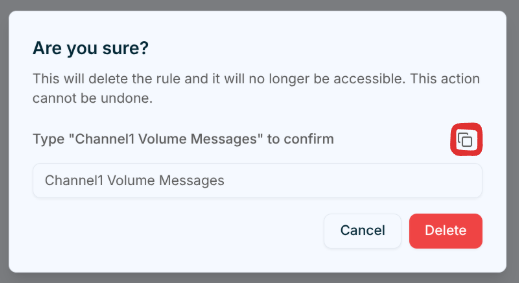
To delete a rule, click the Delete quick action. A confirmation dialog appears asking you to type the rule's name before deletion is finalized. Use the copy button to copy the name, paste it into the input field, then click Delete to permanently remove the rule.