
Profile Management
Manage your personal user profile
User Profile
Each user has access to a Profile Page, where personal information, security settings, and preferences can be updated.
Clicking the user profile picture or avatar at the top right opens a popover.
Standard User Menu
- Profile
- Personal Access Tokens
- Domains
- Logout
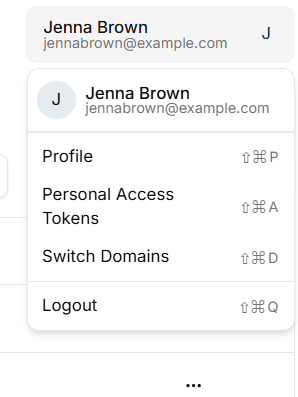
Selecting the Profile option reveals three main tabs:
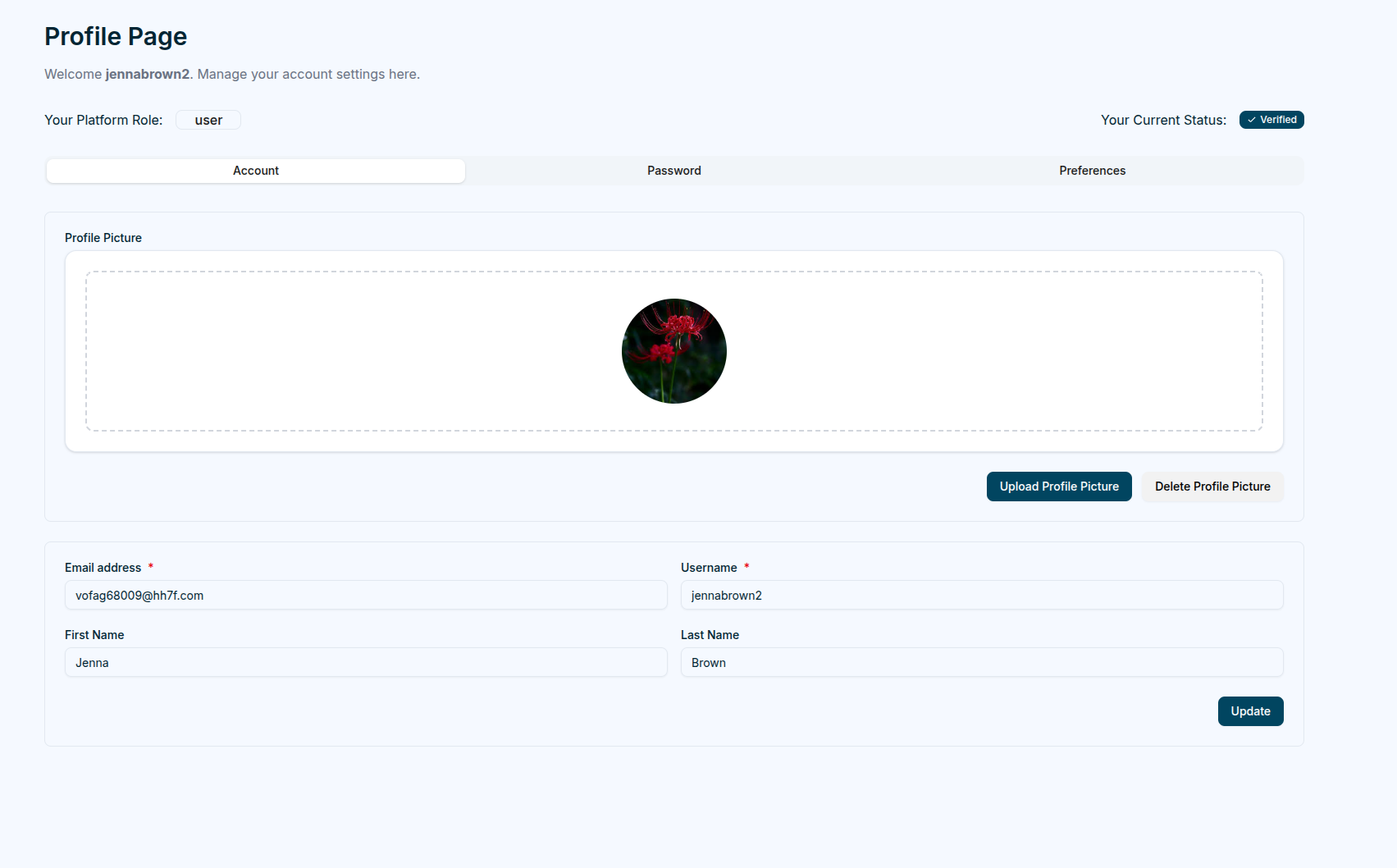
Account
The Account tab allows users to update their names, email and upload a profile picture.
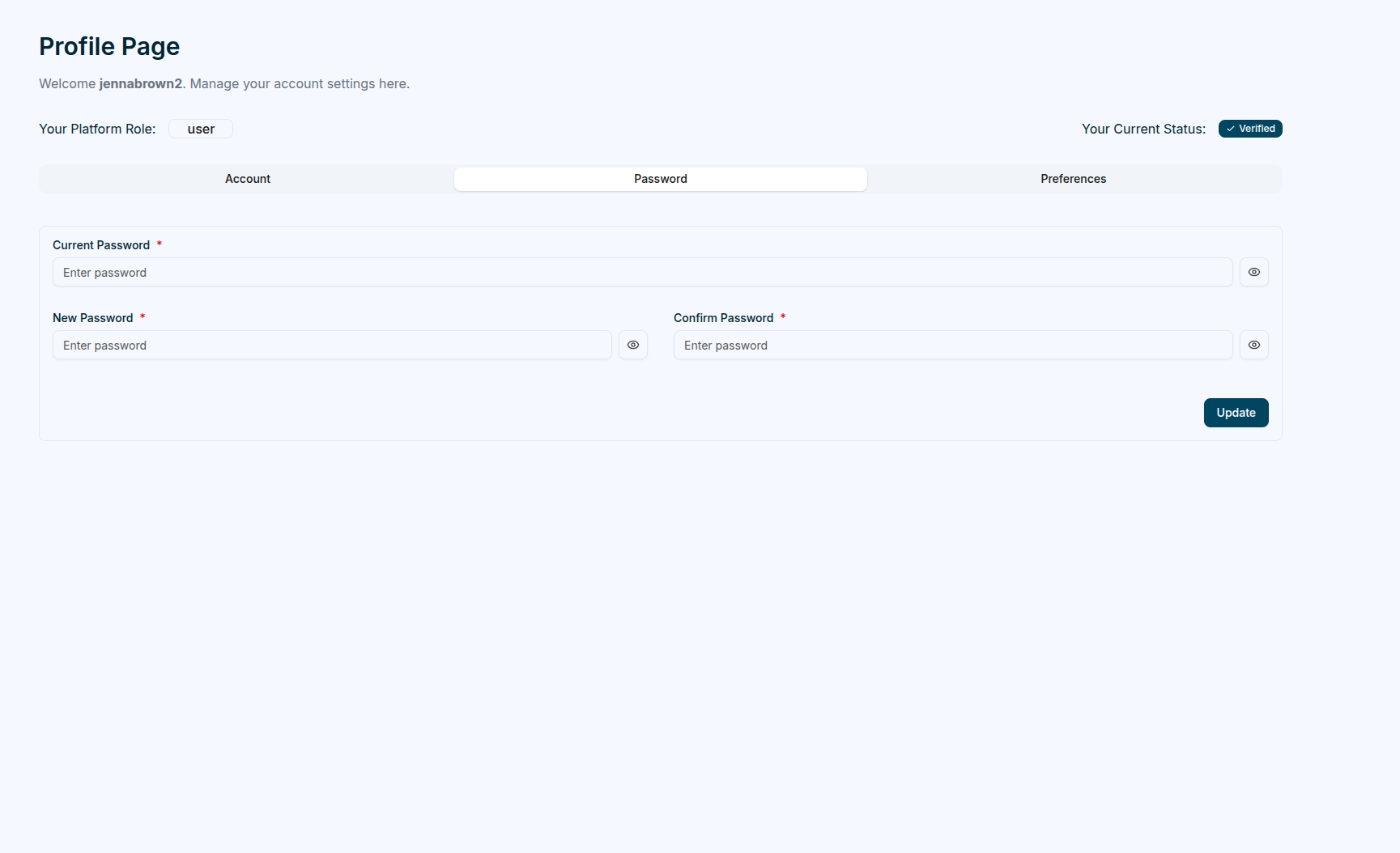
Password
The Password tab focuses on security. Users can change their password by entering their current password, followed by the new password (which must pass verification) and its confirmation.
Preferences
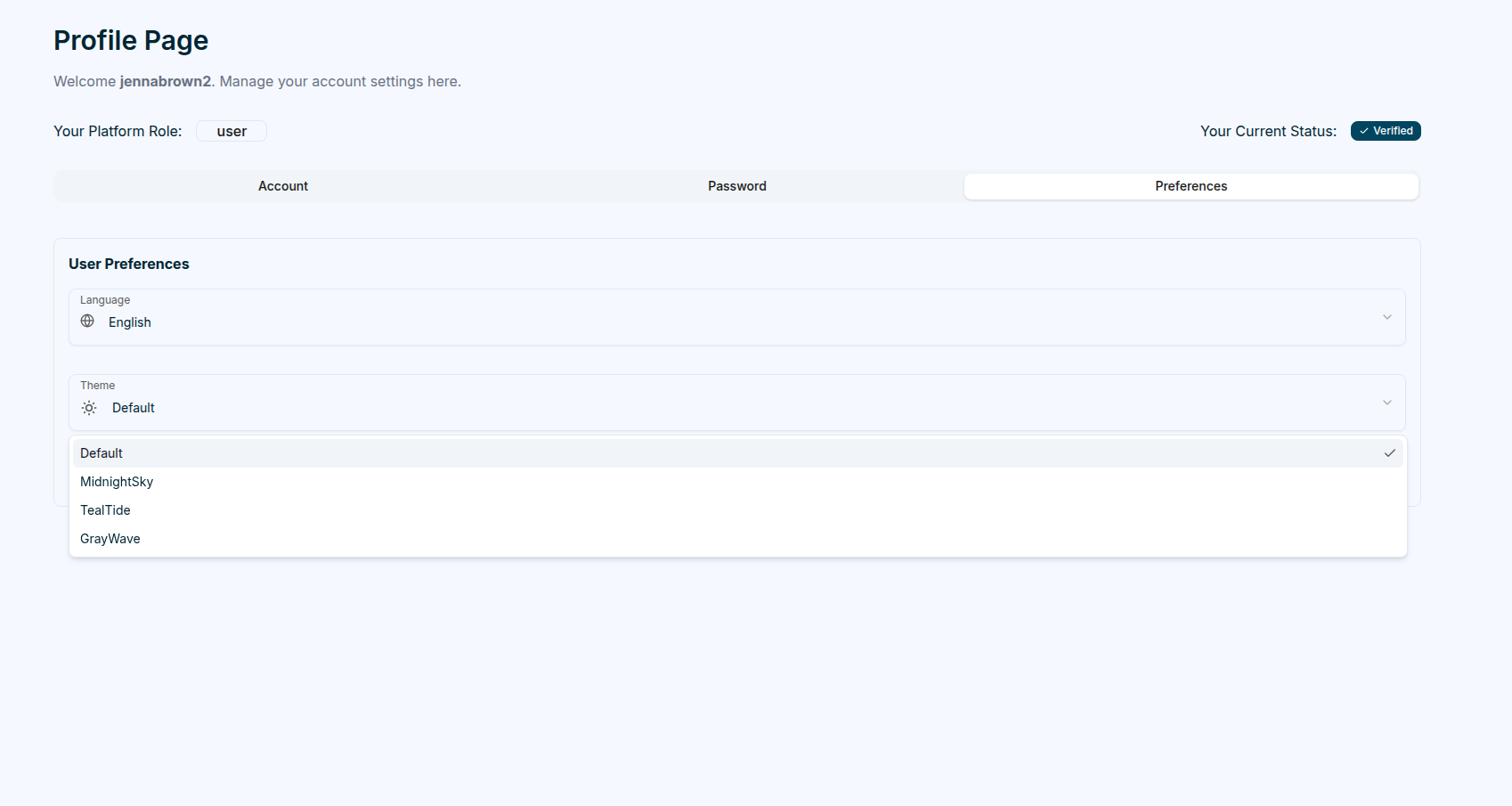
The Preferences tab enables users to customize language and theme settings.
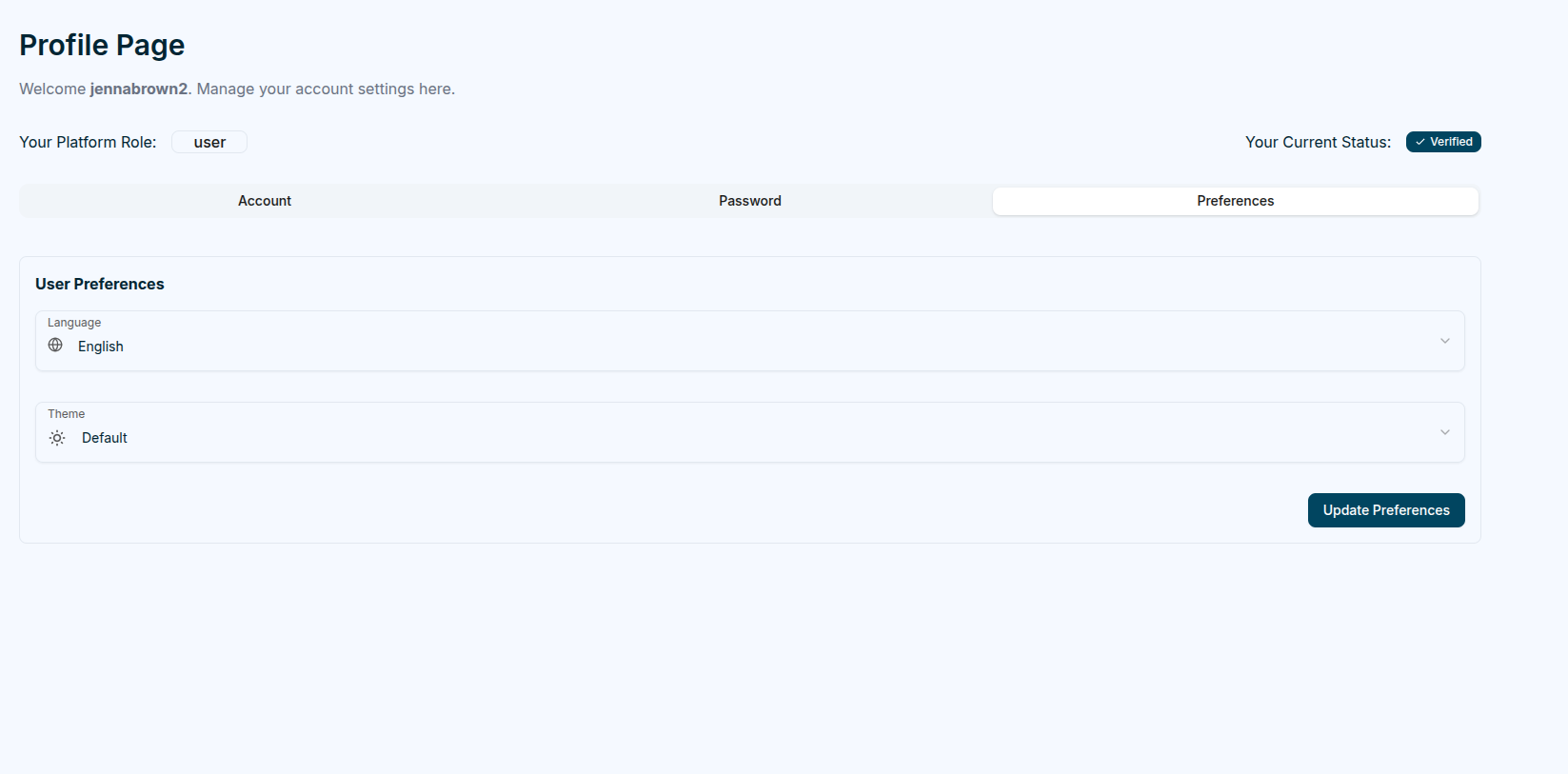
Magistrala currently supports English, German, and Serbian languages and offers four different themes to choose from.
Password Recovery
Users who forget their password can initiate a password reset through the Forgot Password feature on the login page.
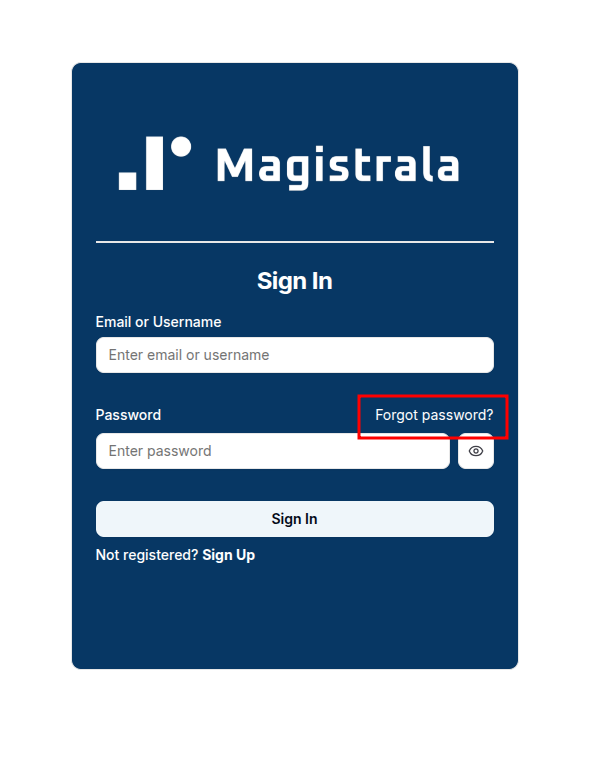
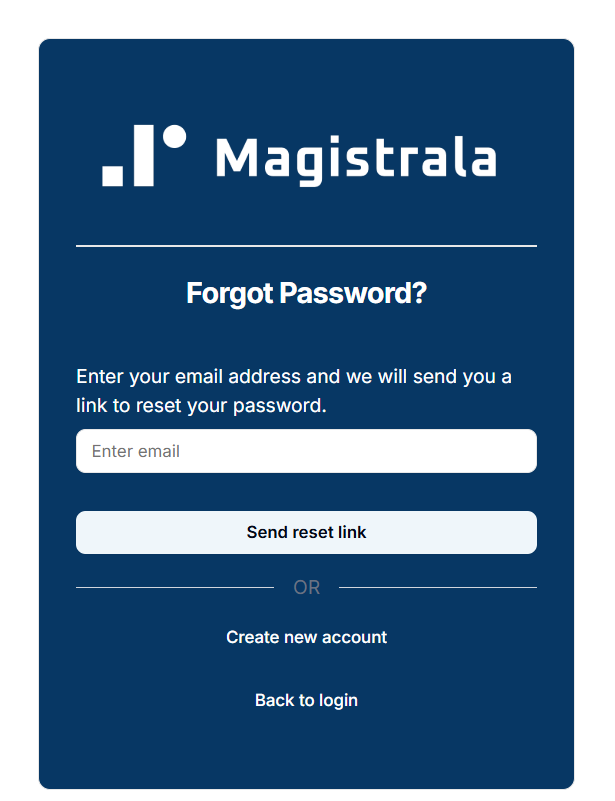
Clicking the Forgot Password? link redirects the user to a dedicated Forgot Password page, where they must enter their registered email address.
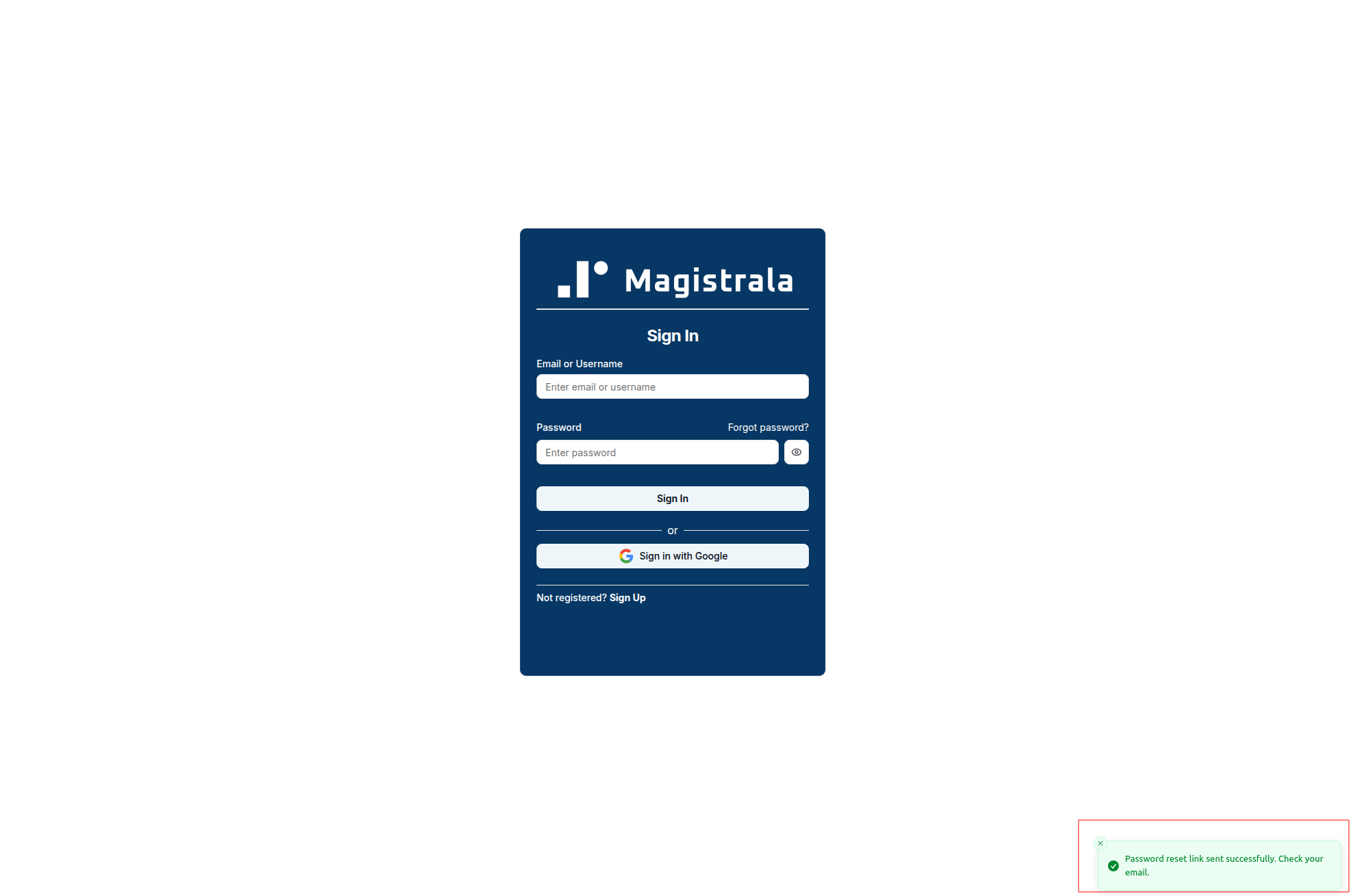
After submitting the request, Magistrala displays a success notification confirming that the reset link has been sent.
Password reset link sent successfully. Check your email.
A password reset email is then delivered to the user’s inbox.
The email includes a personalized greeting and a button that directs the user to the password reset page.
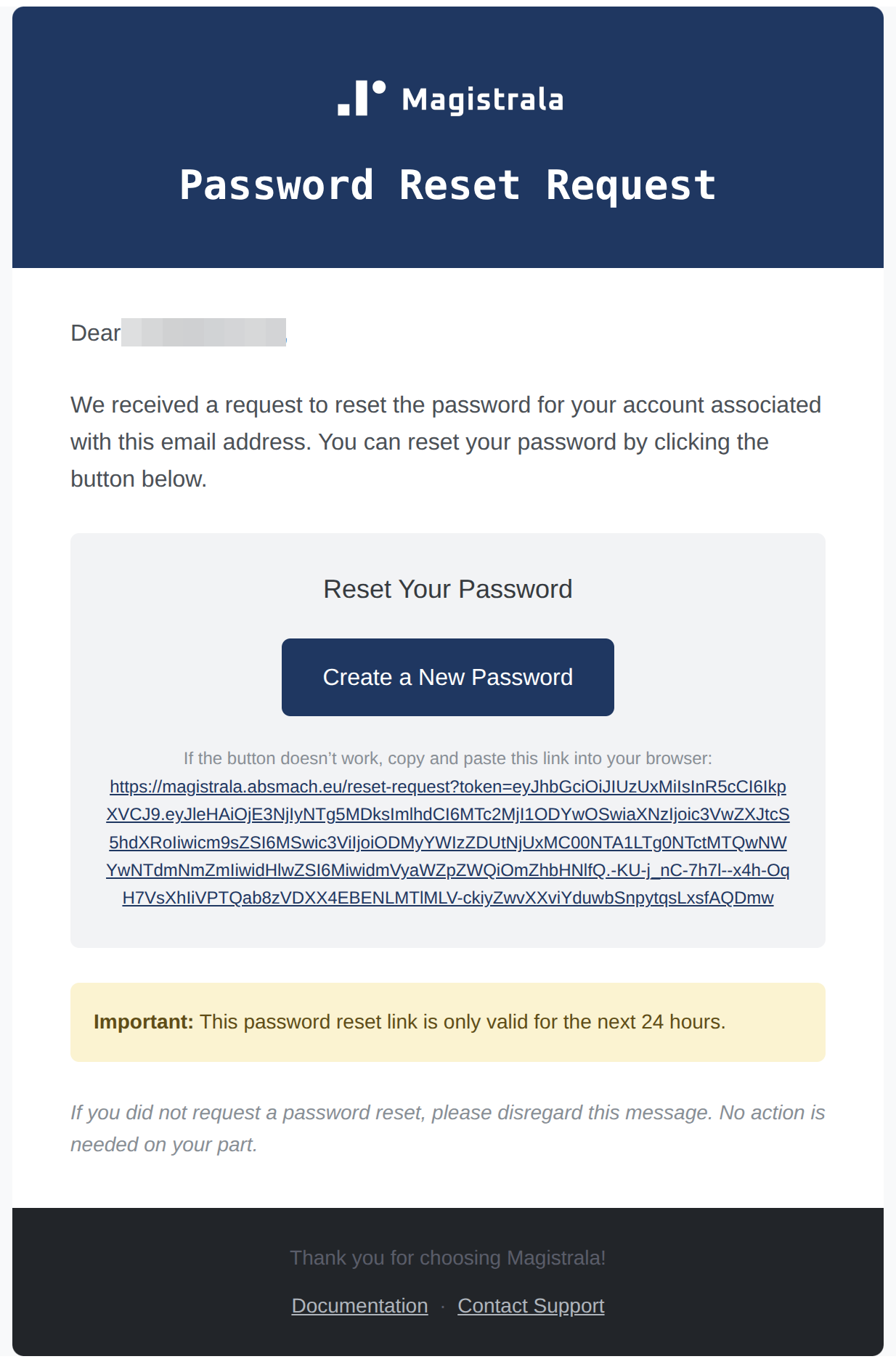
By clicking Create a New Password, the user is redirected to the Reset Password page, where they can create and confirm a new password.
If the button does not work, the email also contains a fallback link that can be copied and pasted into a web browser.
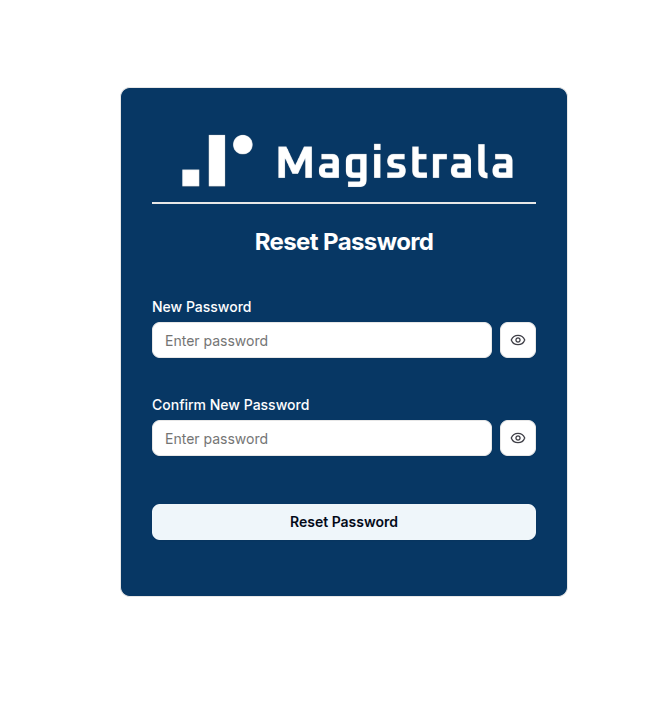
Important: The password reset link is valid for 24 hours from the time of issue.
Once the password has been successfully updated, the user can return to the Sign In page and log in with the new credentials.