Domain
Manage a Magistrala Domain through editing metadata, roles and assigning users with roles.
Creating a Domain
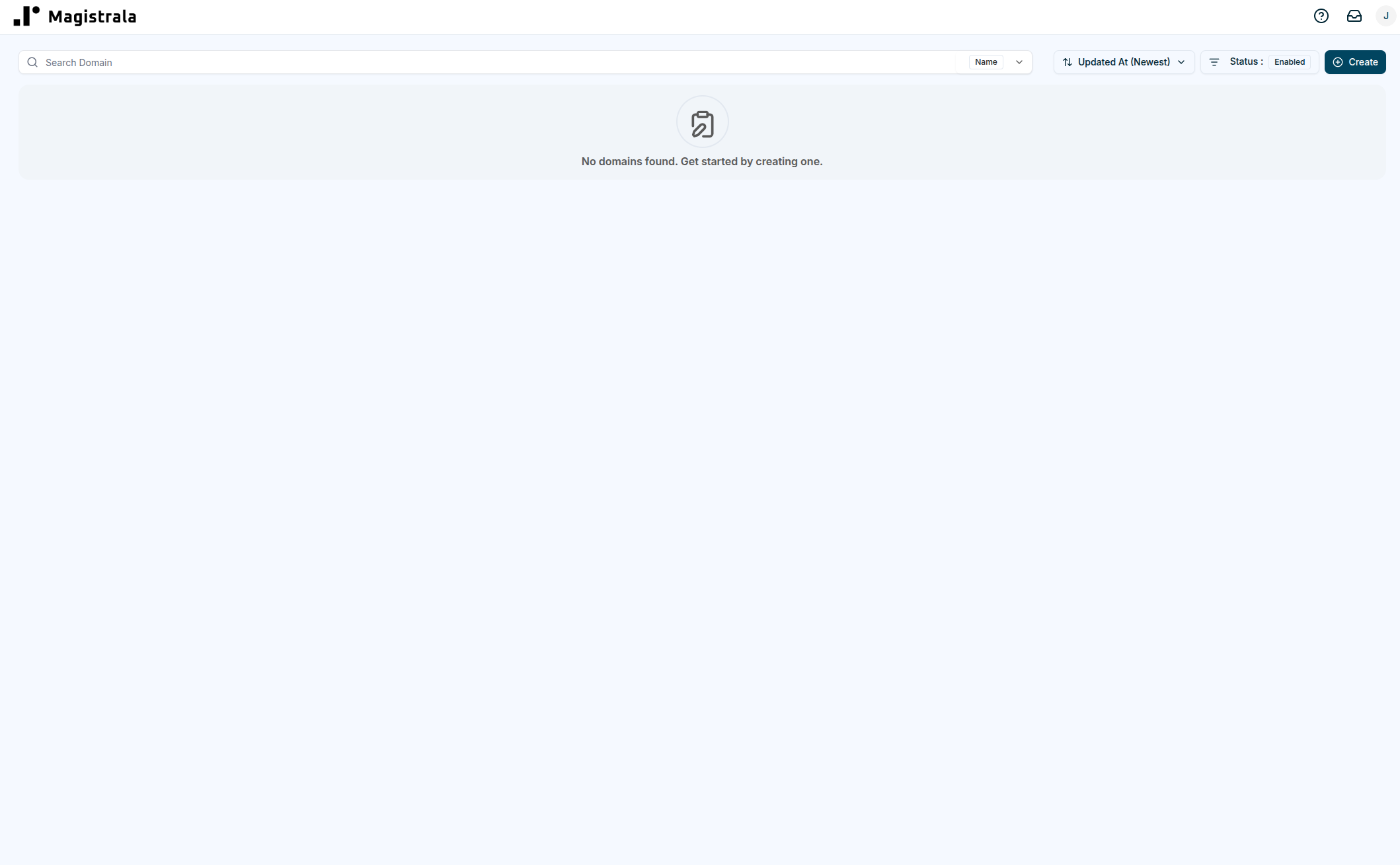
After logging in, the user is redirected to the Domains page.
If no domains exist, an empty state appears prompting the creation of a new one.
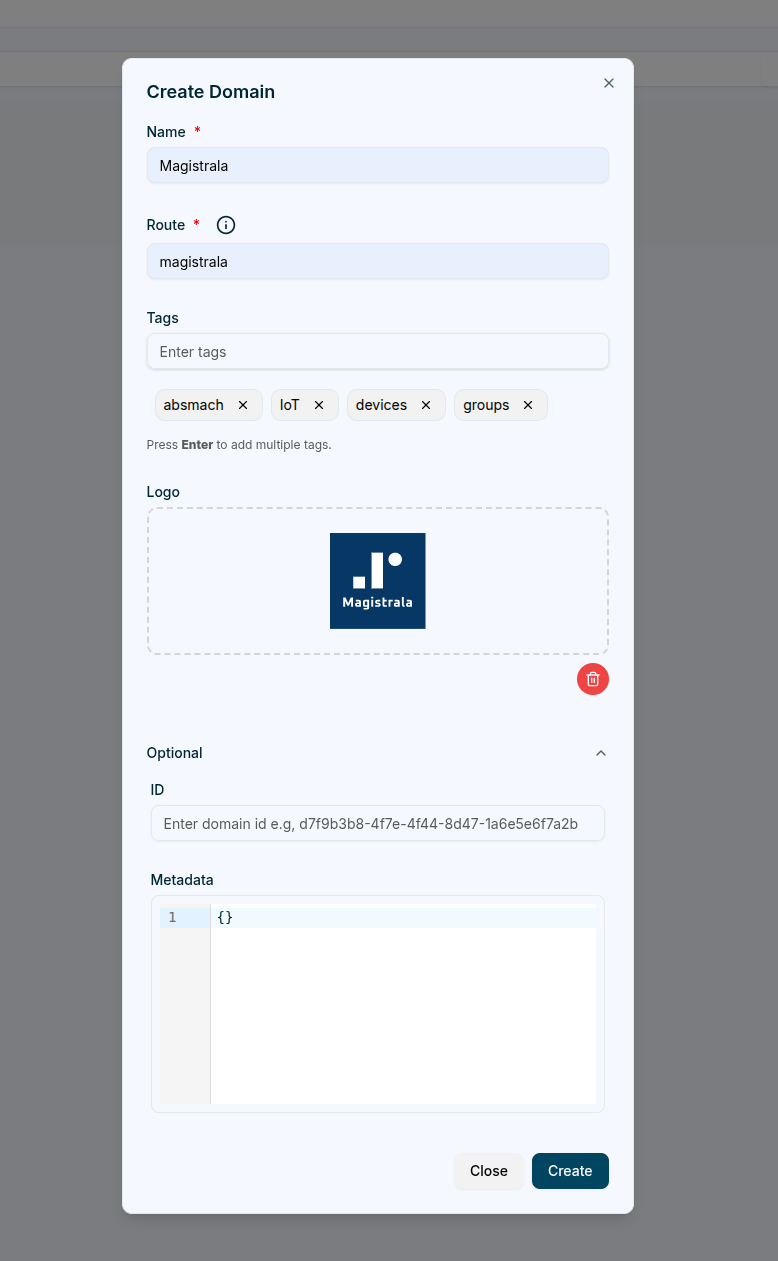
Clicking the + Create button opens the Create Domain dialog.
The dialog presents fields for entering domain details.
The primary fields are Name and Route, which are required.
Additional optional fields include Metadata, ID, Tags, and Logo.
- The Route field acts as a short, human-readable identifier and cannot be changed later.
- Metadata must be provided as a valid JSON object (for example:
{ "region": "EU" }, not a string). - The ID value is automatically generated if omitted.
- Tags can be used to categorize domains for improved organization and searchability.
- Logo supports image uploads up to 5 MB in size.
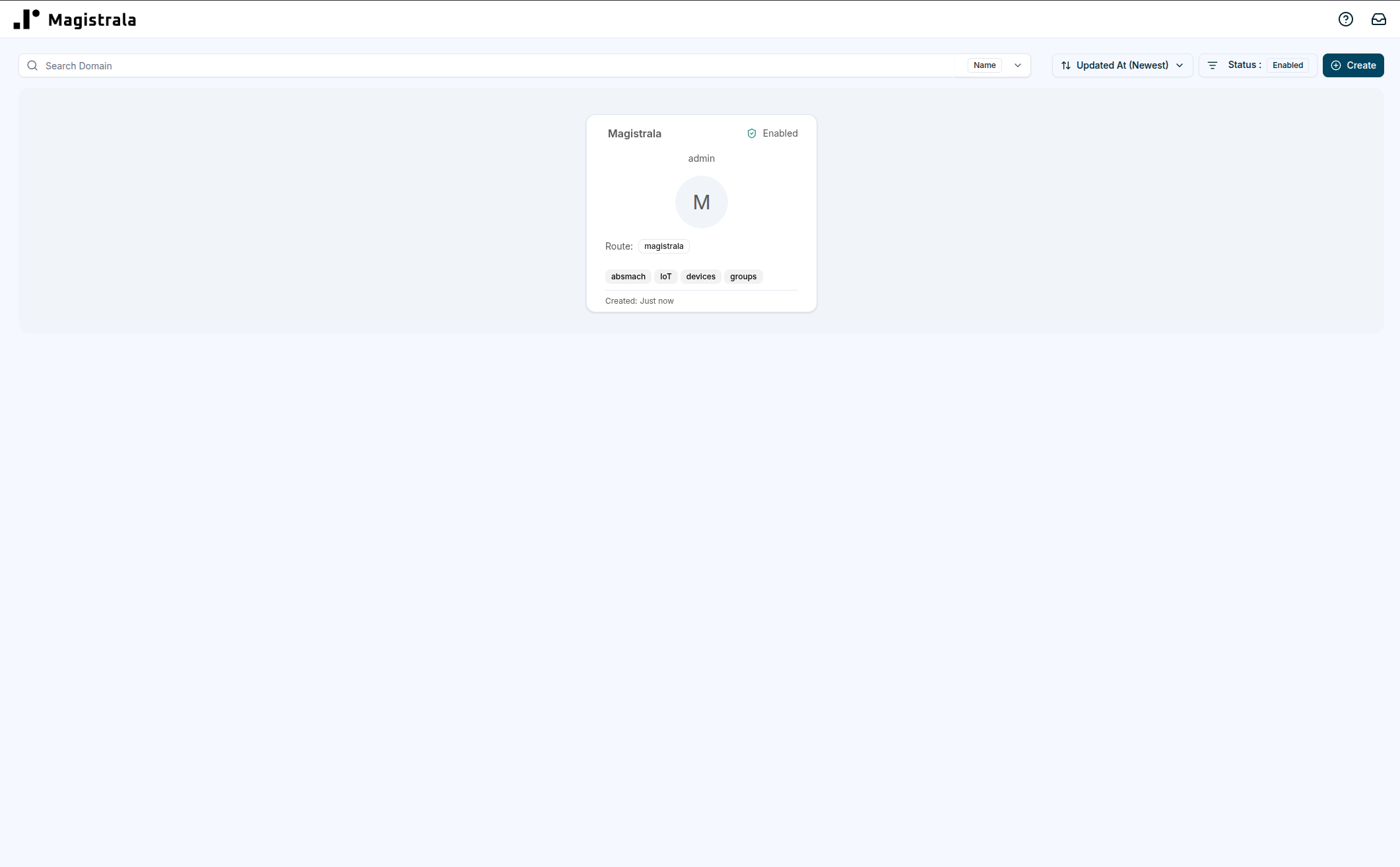
Once a domain is successfully created, it appears on the Domains page as a card displaying its name, route, status and associated tags.
Selecting a domain card initiates a session within that domain.
This action redirects the user into the domain workspace, where domain-specific entities such as clients, channels and groups can be managed.
Domain Homepage
Upon entering a domain, the system redirects to the Domain Homepage.
This page provides an overview of all activities, entities, and limits within the selected domain.
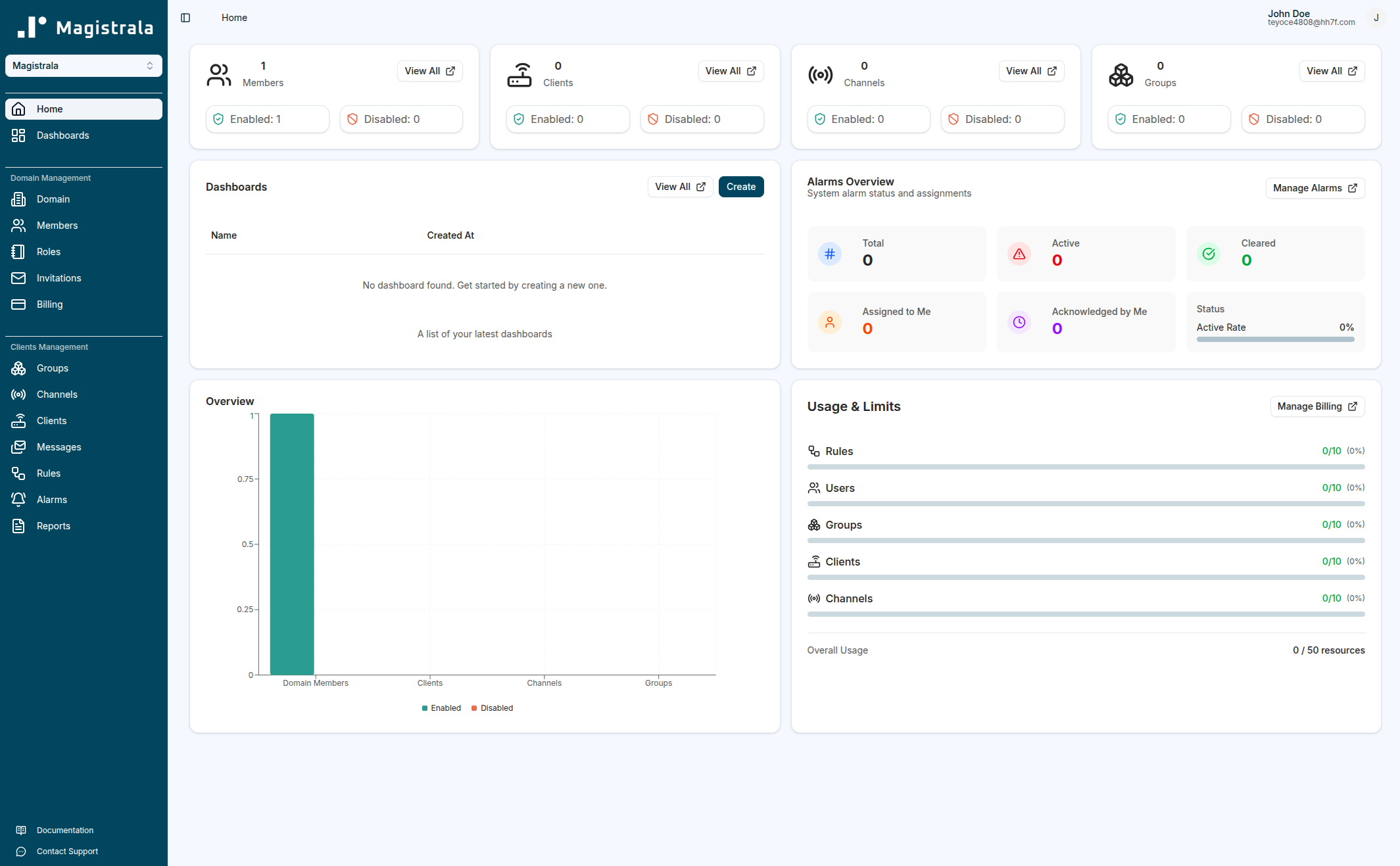
At the top of the page, a series of summary cards displays the current state of the domain’s entities:
- Members – Shows the total number of users assigned to the domain, along with their enabled or disabled status.
The domain creator is automatically assigned the Admin role and appears as the first active member. - Clients – Displays the number of clients within the domain and their operational status.
- Channels – Lists the channels available for message publishing and subscription.
- Groups – Indicates the total number of groups configured in the domain.
Each card also includes a quick-access View All button for navigating directly to the detailed management page of that entity.
Dashboards
The Dashboards section on the Home page provides a quick summary of your existing dashboards within the current domain.
It lists the Name and Created At columns, along with buttons to View All dashboards or Create a new one.
If no dashboards exist yet, a message appears prompting you to “Get started by creating a new one.”
This section helps you quickly access or create dashboards without navigating away from the Home page.
Alarms Overview
The Alarms Overview section summarizes active and historical alarms within the domain.
It highlights alarms that are currently active, assigned or acknowledged, helping administrators quickly identify and manage system events that require attention.
Overview Chart
Below the summary cards, a bar graph presents a visual comparison of domain entities such as members, clients, channels, and groups.
This graph mirrors the numeric information shown in the cards but offers a more immediate and visually intuitive representation of domain activity.
Usage and Limits
The Usage & Limits section displays resource utilization across various entity types, including rules, users, groups, clients, and channels.
It provides insight into the current usage relative to the domain’s maximum allocation, ensuring that administrators can monitor and manage capacity efficiently.
The Manage Billing option links directly to the billing section for plan adjustments or usage expansion.
The Domain Homepage thus serves as a central dashboard for domain-level monitoring, configuration, and resource management, providing both high-level insights and quick access to detailed sections.
Domain Information
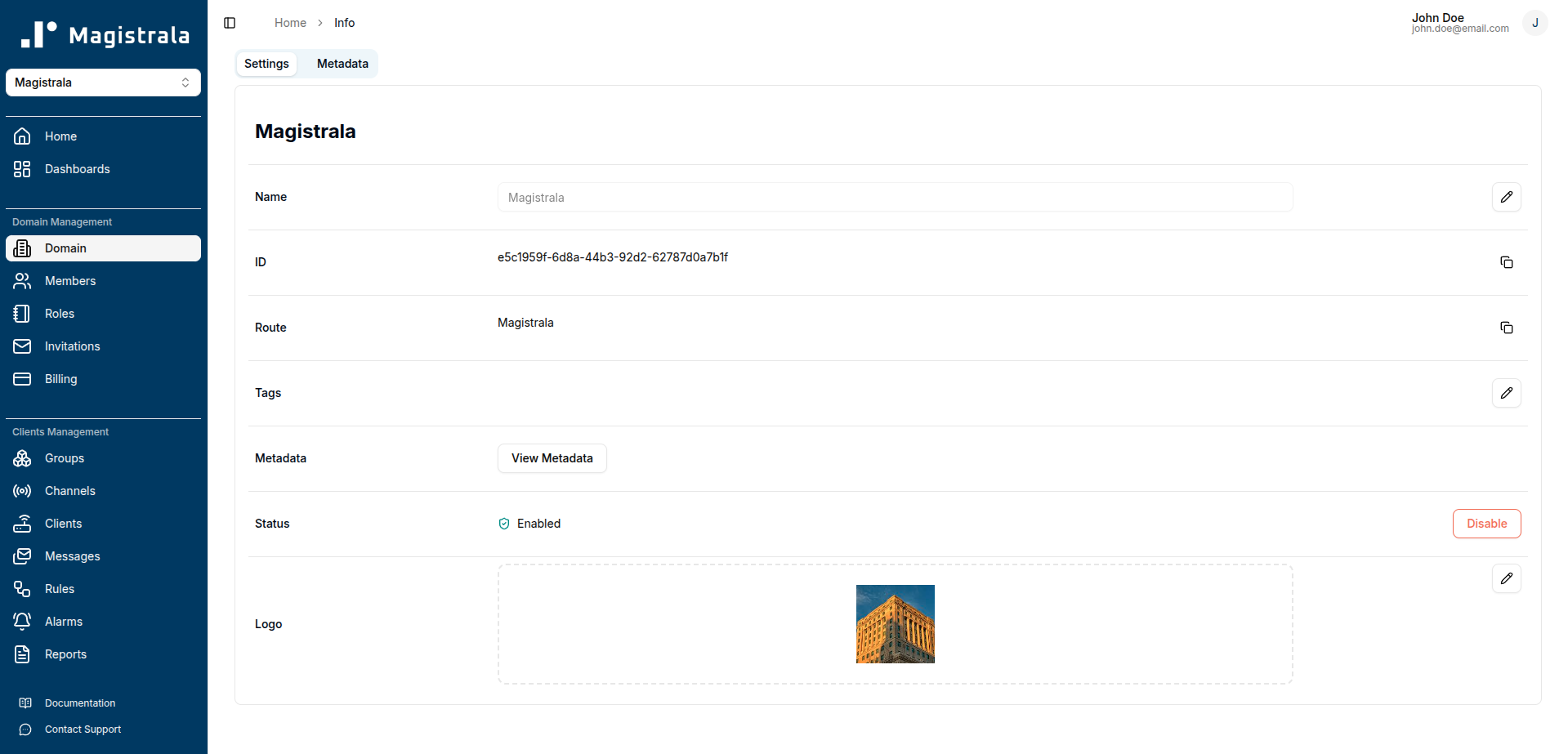
Navigate to the Domain section in the side navigation under Domain Management to access domain details. The domain information page has two tabs: Settings and Metadata.
Settings Tab
The Settings tab allows you to view and edit core domain properties:
Editable Fields:
- Name – A descriptive label for the domain
- Tags – Optional keywords for better organization and searchability
- Status – Enable or disable the domain using the toggle switch
- Logo – An image (up to 5MB) that represents the domain
View-Only Fields:
- ID – The globally unique identifier (UUID) for the domain (copy button available)
- Route – A user-friendly identifier for the domain (copy button available)
Note: The Route is set only during creation and cannot be changed later
- Metadata – View existing metadata in JSON format (managed in the Metadata tab)
The Domain status can be disabled by clicking the Disable button or enabled by the Enable button. Disabling the domain will revoke access for users who aren't domain admins.
Metadata Tab
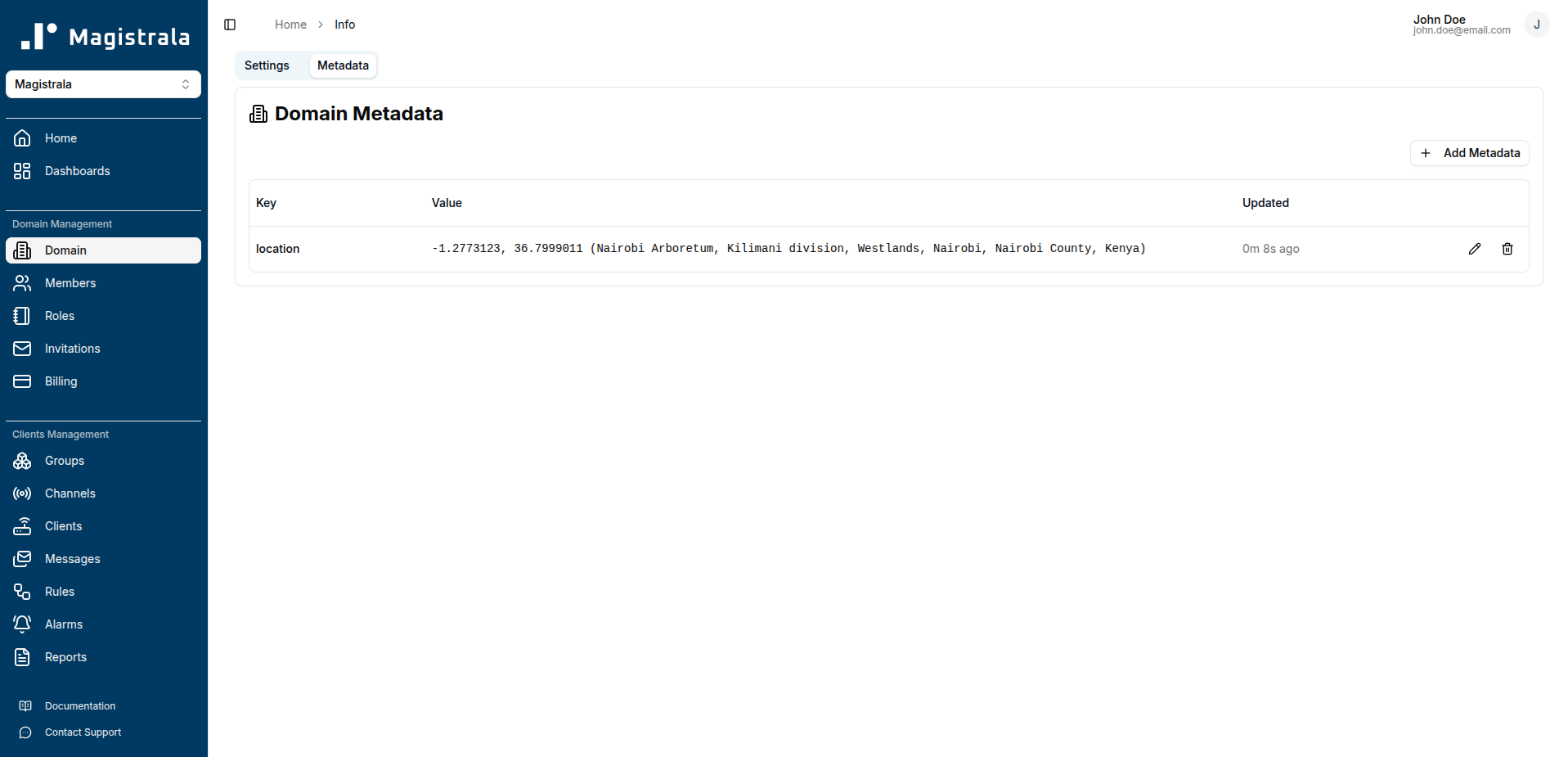
The Metadata tab allows you to add, view, and manage additional information for the domain. Metadata supports various value types including text, numbers, booleans, JSON objects, locations, and perimeters.
For detailed instructions on managing metadata, including working with interactive maps for location and perimeter data, see the Metadata Management Guide.
Domain Members
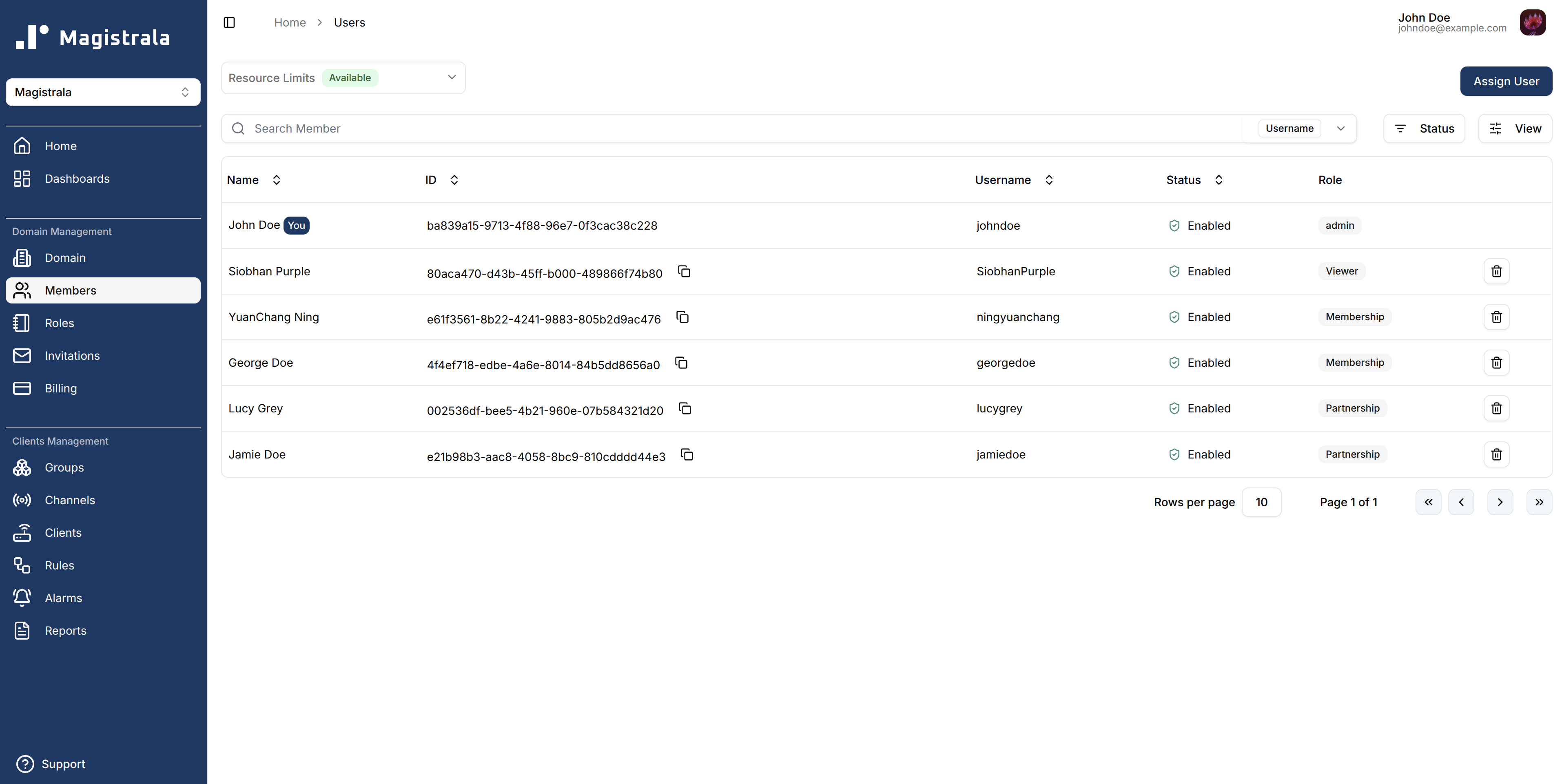
A Domain Admin (or any member with the appropriate permission) can add users to a domain and assign them a role.
Every member must have a role; roles determine what they can do across Clients, Channels, Groups, Dashboards, and other resources.
Important: The read permission is the most basic permission required for domain access.
Without read, a user cannot view the domain at all after signing in — not just specific entities.
Assign read to any user who needs to log in and see the domain.
Members’ effective permissions over entities depend on the role they’re assigned.
Users with additional permissions (e.g., Write, Manage) can perform actions as allowed by that role.
Assign Users
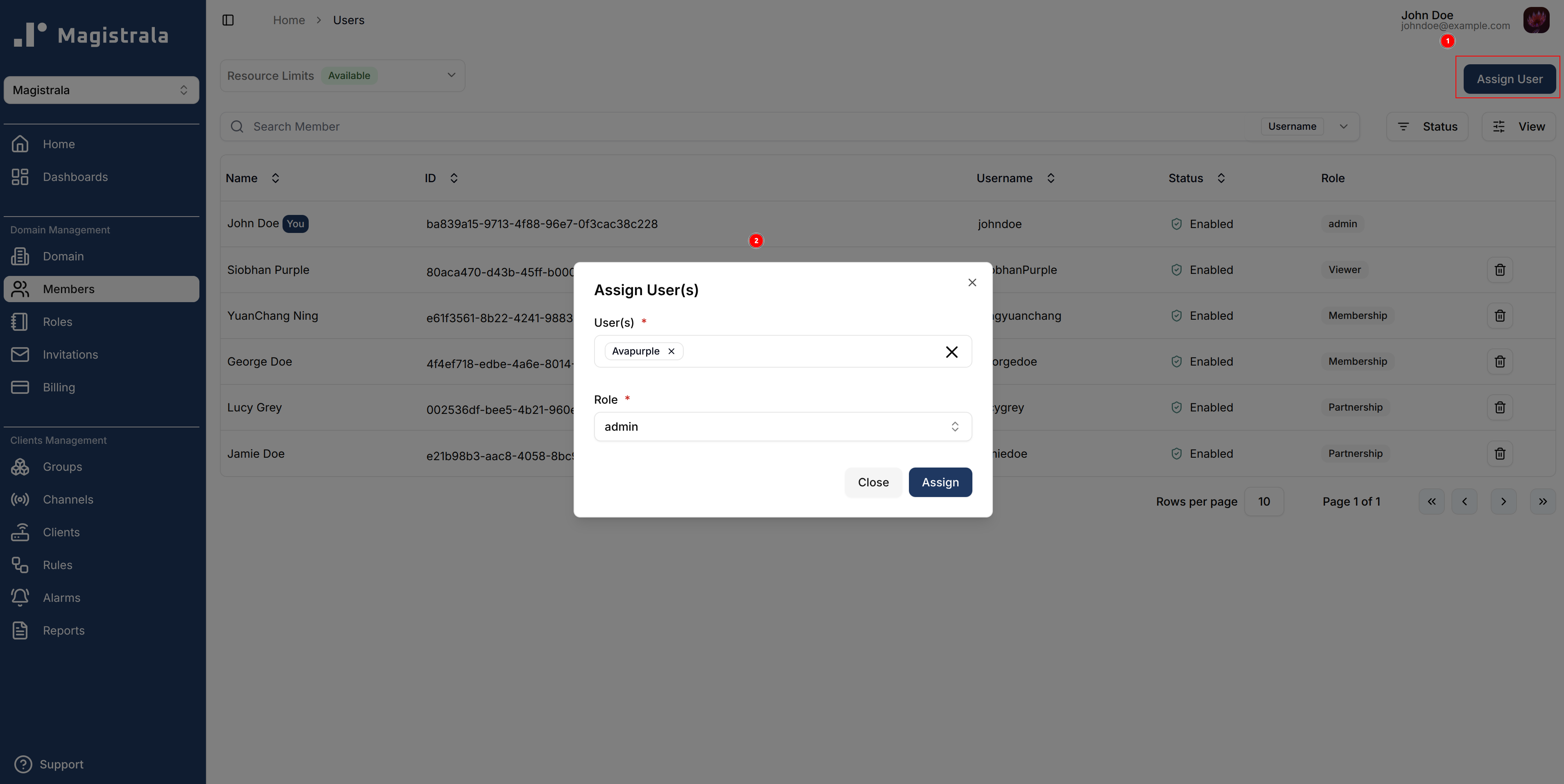
To assign a user to a domain, click the Assign User button.
Search for the user by their username, then select their name and choose one or more roles to assign.
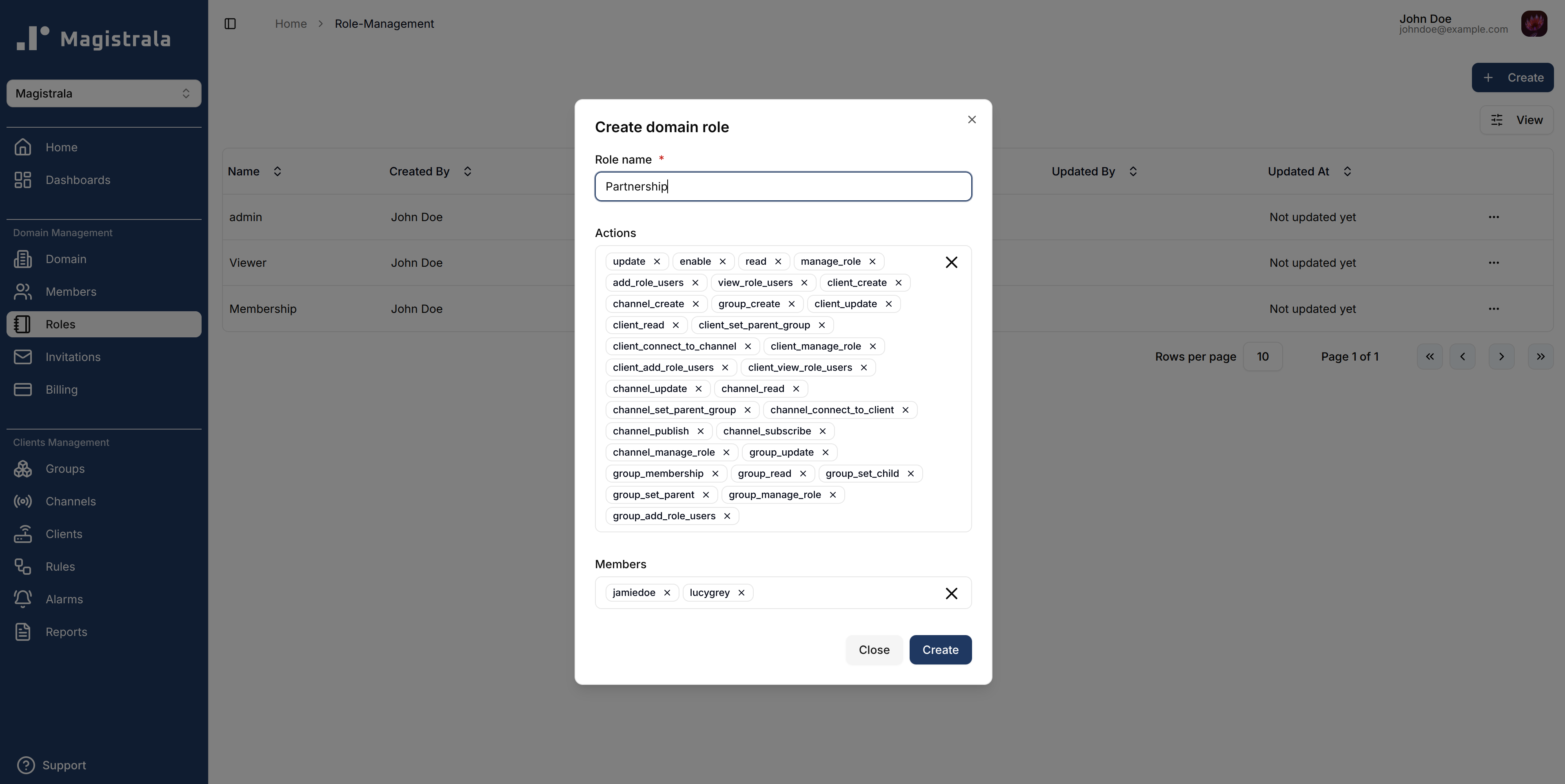
Alternatively, a user can also be added while creating the domain role.
Unassign Users
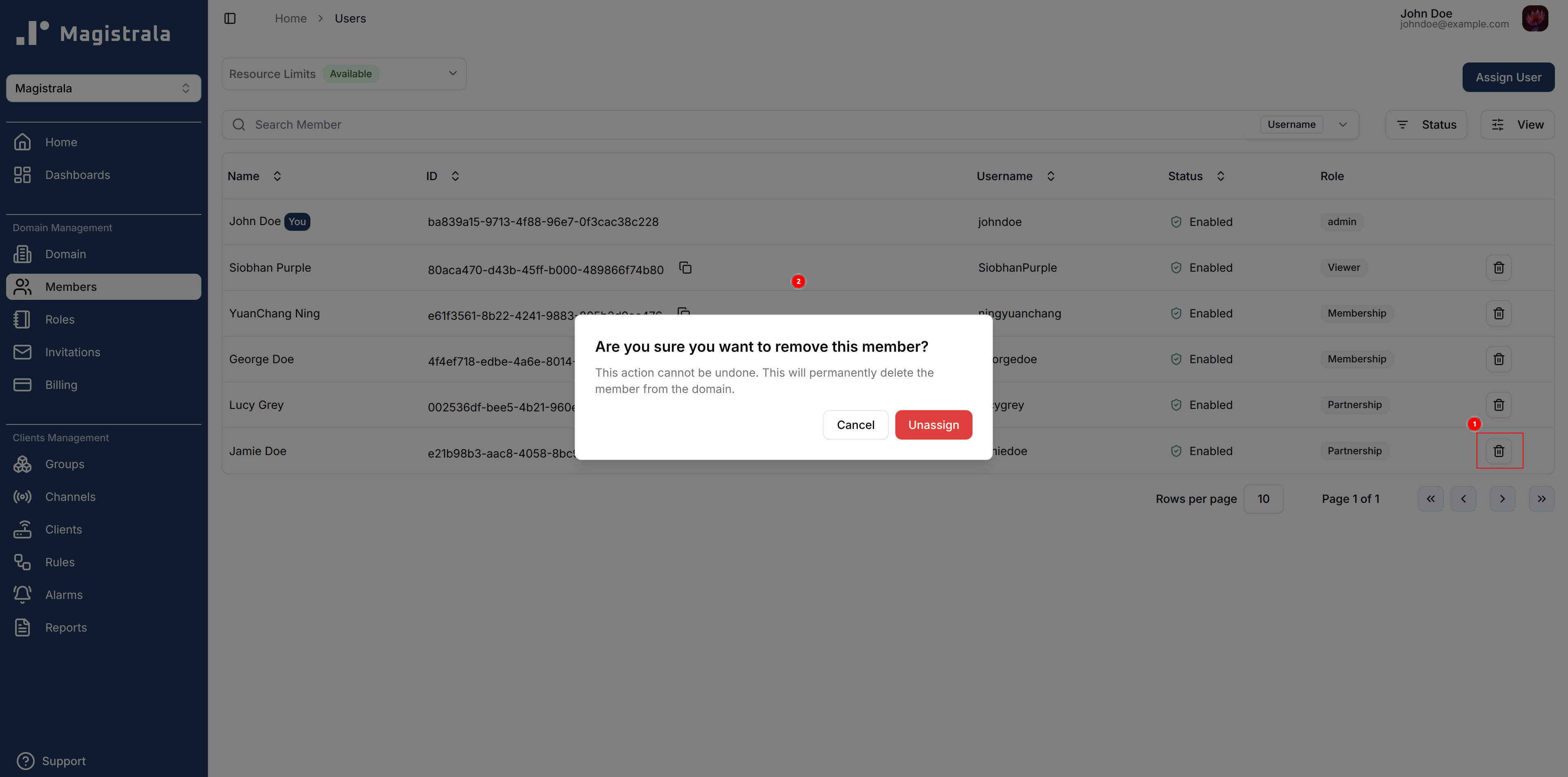
To unassign a user, click on the trash icon present on their row and click Unassign on the popup to confirm the action.
Domain Roles
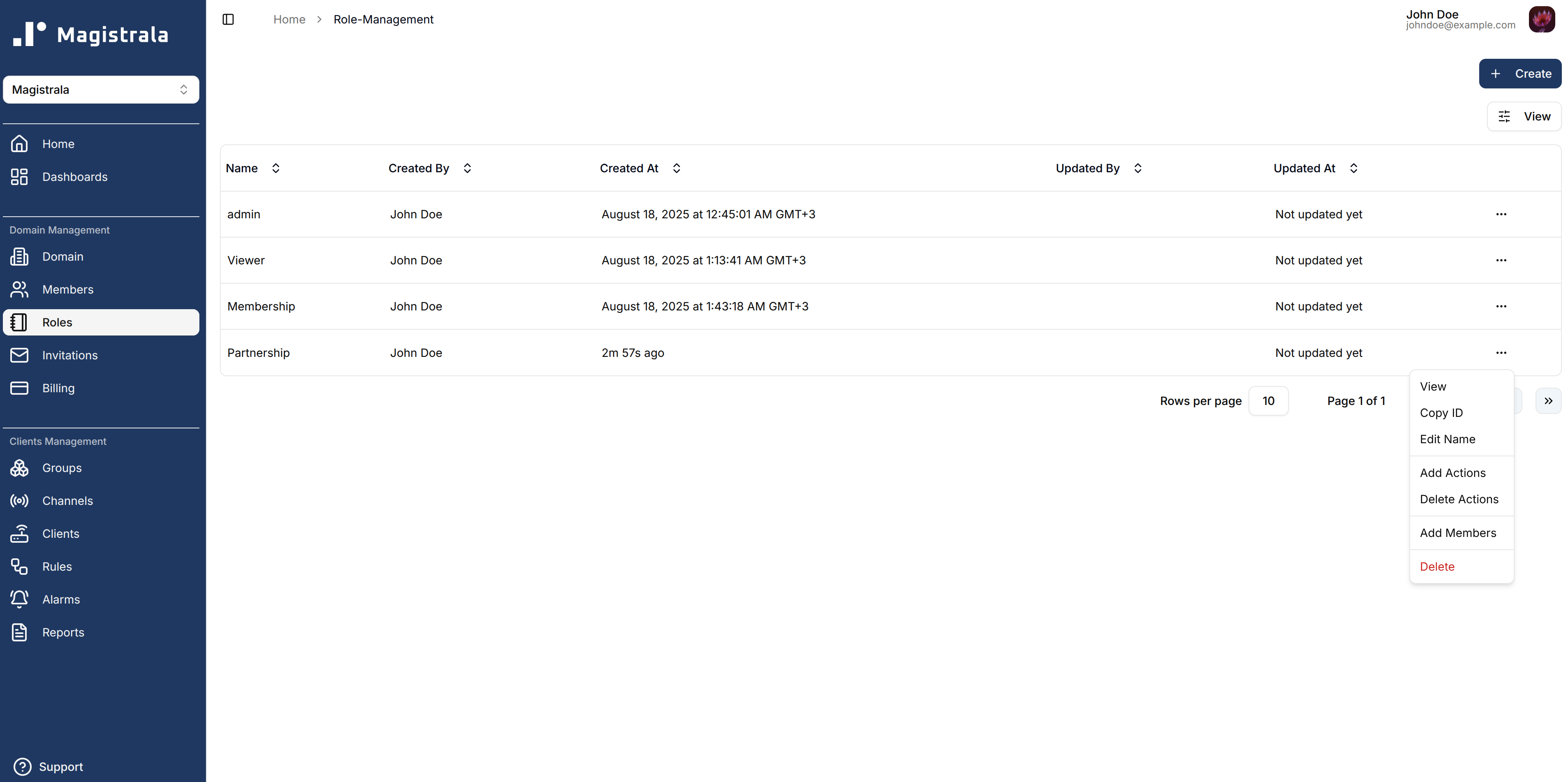
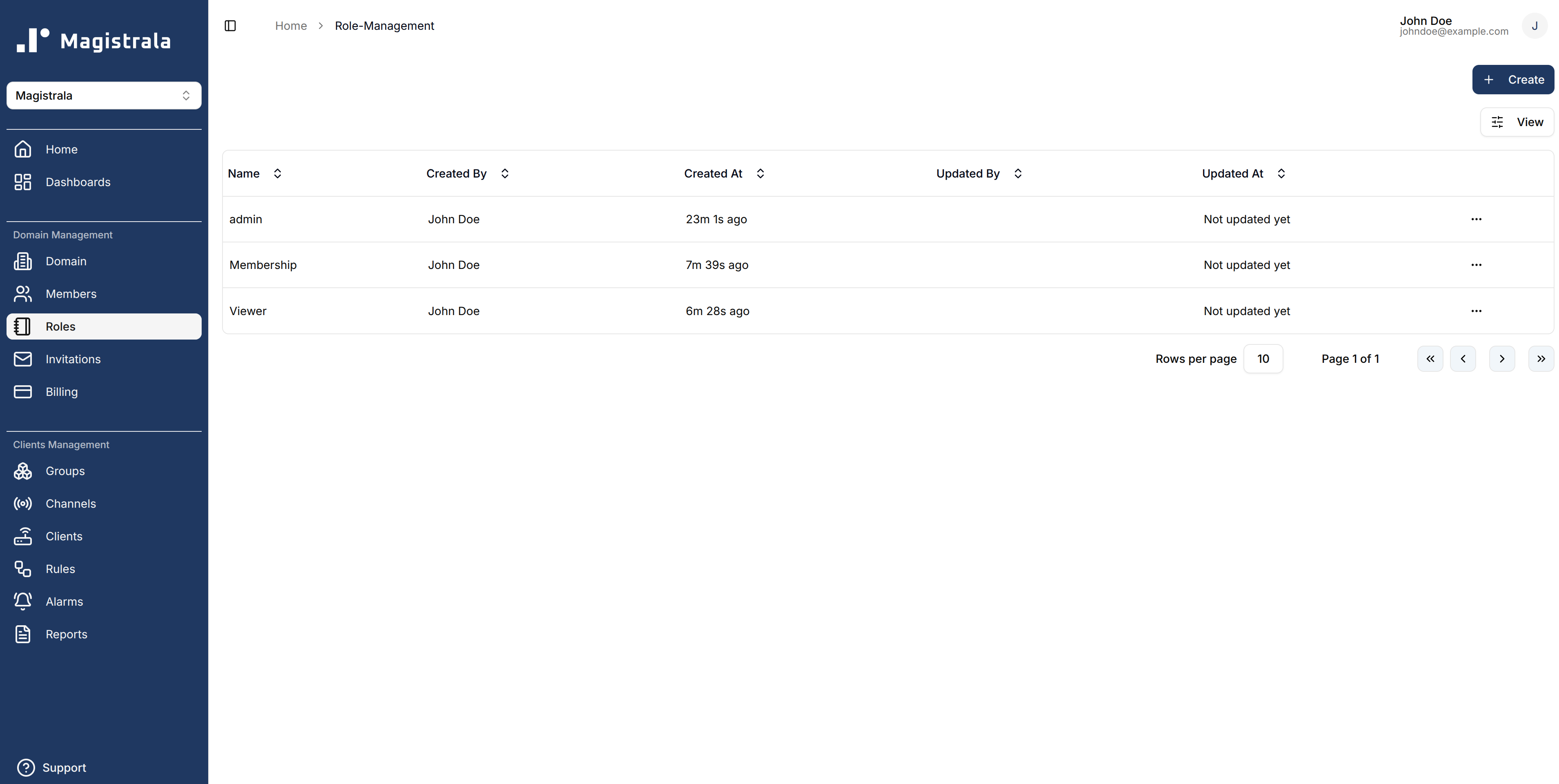
From the Roles section, you can create new roles with custom actions.
By default, an Admin role with complete control over the domain is always present and granted to the Domain creator.
Here's a comprehensive list of domain role actions:
-
Domain Management
- update
- enable
- disable
- read
- delete
-
Role Management
- manage_role
- add_role_users
- remove_role_users
- view_role_users
-
Client Management
- client_create
- client_update
- client_read
- client_delete
- client_set_parent_group
- client_connect_to_channel
- client_manage_role
- client_add_role_users
- client_remove_role_users
- client_view_role_users
-
Channel Management
- channel_create
- channel_update
- channel_read
- channel_delete
- channel_set_parent_group
- channel_connect_to_client
- channel_publish
- channel_subscribe
- channel_manage_role
- channel_add_role_users
- channel_remove_role_users
- channel_view_role_users
-
Group Management
- group_create
- group_update
- group_read
- group_delete
- group_membership
- group_set_child
- group_set_parent
- group_manage_role
- group_add_role_users
- group_remove_role_users
- group_view_role_users
To create a new role, click on the + Create button, provide a descriptive name for the role, and optionally add users and actions
Once created, domain roles can be edited in their respective pages. Users can edit the domain role name, role actions and role members.
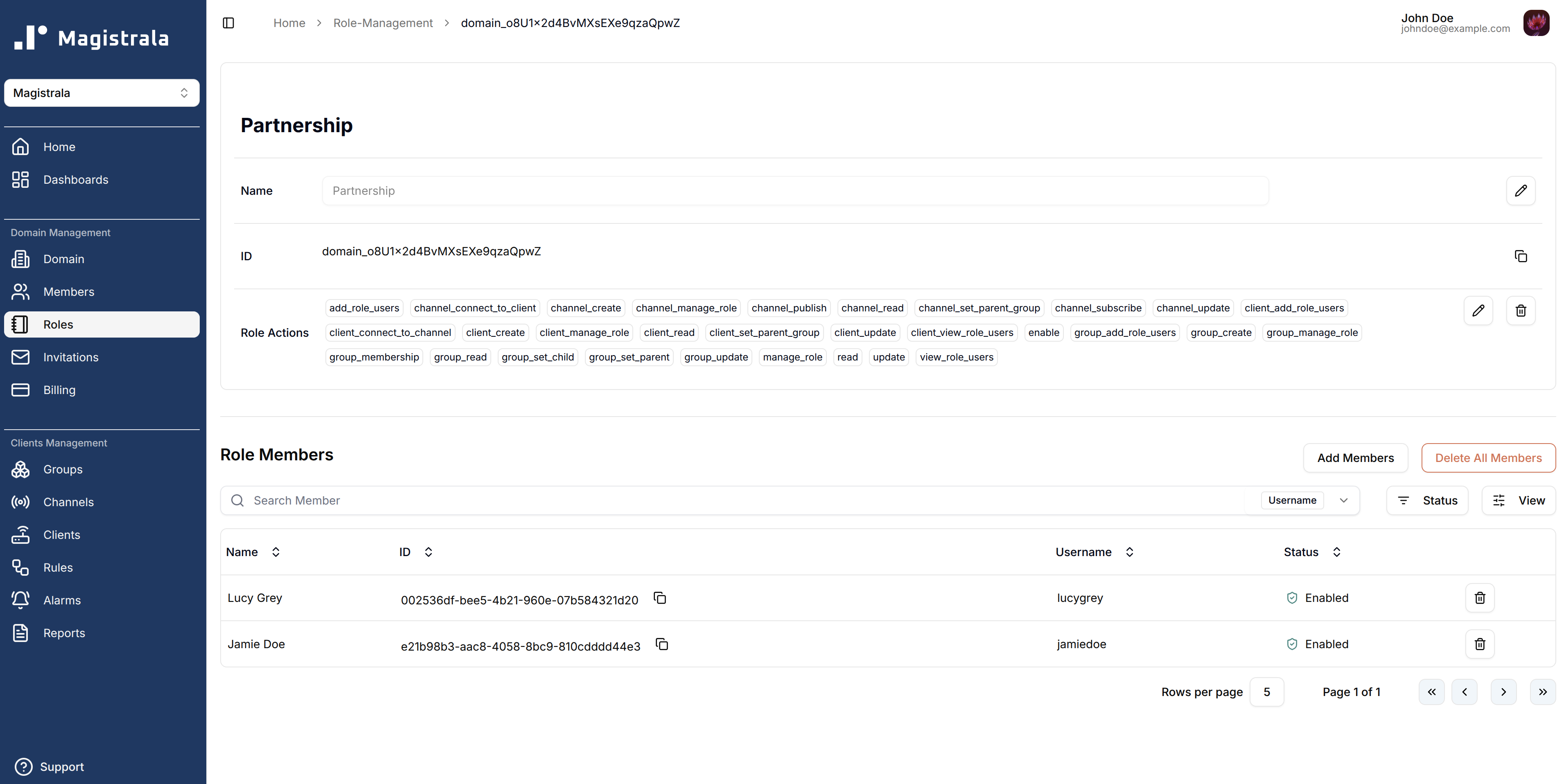
These fields can be updated directly on the page or via the dropdown menu options.